Report Builder
ReportsOverview
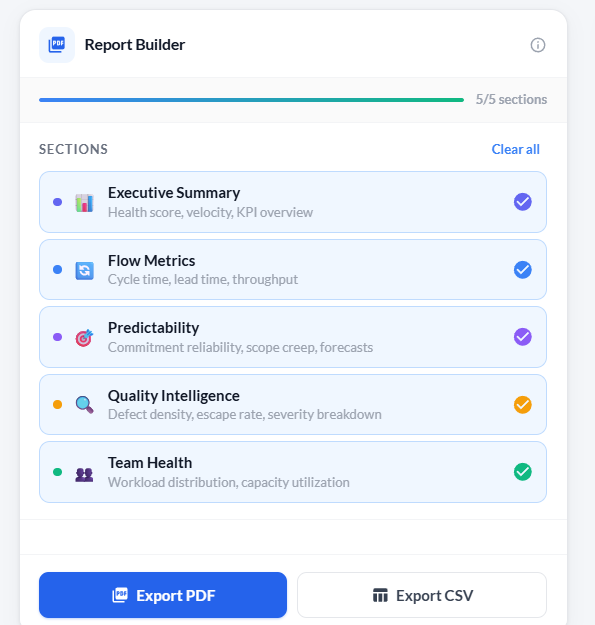
The Report Builder tab lets you compose and export a custom analytics report for stakeholders. You choose which sections to include, preview the data live, then export to PDF or CSV with a single click. The PDF is formatted with a cover header, one page per section, and a footer on every page.
Left panel — section selector
The left panel contains five toggleable sections. Click a row to include or exclude that section. Active sections are highlighted. Use Select all to turn on all five at once, or Clear all to deselect everything. A progress strip above the list shows how many sections are currently selected.
| Section | What it exports |
|---|---|
| Executive Summary | Health score, velocity, and KPI overview. |
| Flow Metrics | Cycle time, lead time, and throughput per sprint. |
| Predictability | Commitment reliability, scope creep, and forecasts. |
| Quality Intelligence | Defect density, escape rate, and severity breakdown. |
| Team Health | Workload distribution and capacity utilization. |
Exporting
Two export buttons sit at the bottom of the left panel.
Right panel — live preview
The right panel shows a live preview of the report as you toggle sections. Each selected section renders a table of up to 6 rows. If more data exists, a notice at the bottom of the table shows how many additional rows will appear in the full export.
| Section(s) | Preview columns |
|---|---|
| Executive Summary, Flow Metrics, Predictability | Sprint · Committed · Delivered · Reliability |
| Quality Intelligence | ID · Title · Severity · Status |
| Team Health | Member · Stories · Points |
Troubleshooting
The Export PDF button is disabled
At least one section must be toggled on before you can export. Select one or more sections using the toggles on the left panel, then click Export PDF.
The preview shows "No data available" for a section
That section has no underlying data — for example, Quality Intelligence will be empty if no defects exist, and Team Health will be empty if no stories have been assigned to members.
The PDF does not include all rows
The PDF and CSV exports include all data rows. The live preview is limited to 6 rows per section to keep the preview fast. The full export will contain every record.
I clicked a Sprint name in the preview but nothing happened
Clicking a sprint name opens the Sprint Details dialog. If the dialog does not open, the sprint may no longer exist in the project. Refresh the page and try again.
I clicked a defect ID in the preview but nothing happened
Clicking a defect ID opens the defect update dialog. If the dialog does not open, the defect may have been deleted. Refresh the page and check the Defect list.
The CSV export downloaded two files
Exporting CSV produces two files: silver-sprints.csv (one row per sprint) and silver-defects.csv (one row per defect). Both downloads trigger automatically, a few seconds apart.