Silverile.AI for VS Code
MCPConnect VS Code to Silverile via the Model Context Protocol (MCP). Once configured, Copilot in Agent Mode can read and update your stories, sprints, defects, and test cases directly from the chat panel — no copy-pasting, no context switching.
Prerequisites
- VS Code 1.105.0 or later
- A Silverile account with at least one project
- GitHub Copilot (required for Agent Mode and MCP tool use)
Step 1 — Install the extension
Open the Silverile extension on the VS Code Marketplace →
Ctrl+Shift+X / Cmd+Shift+X)Step 2 — Connect and authenticate
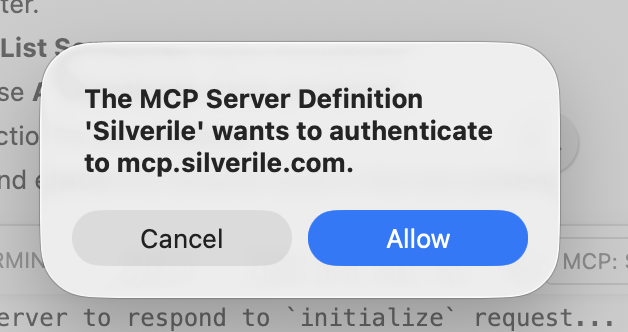
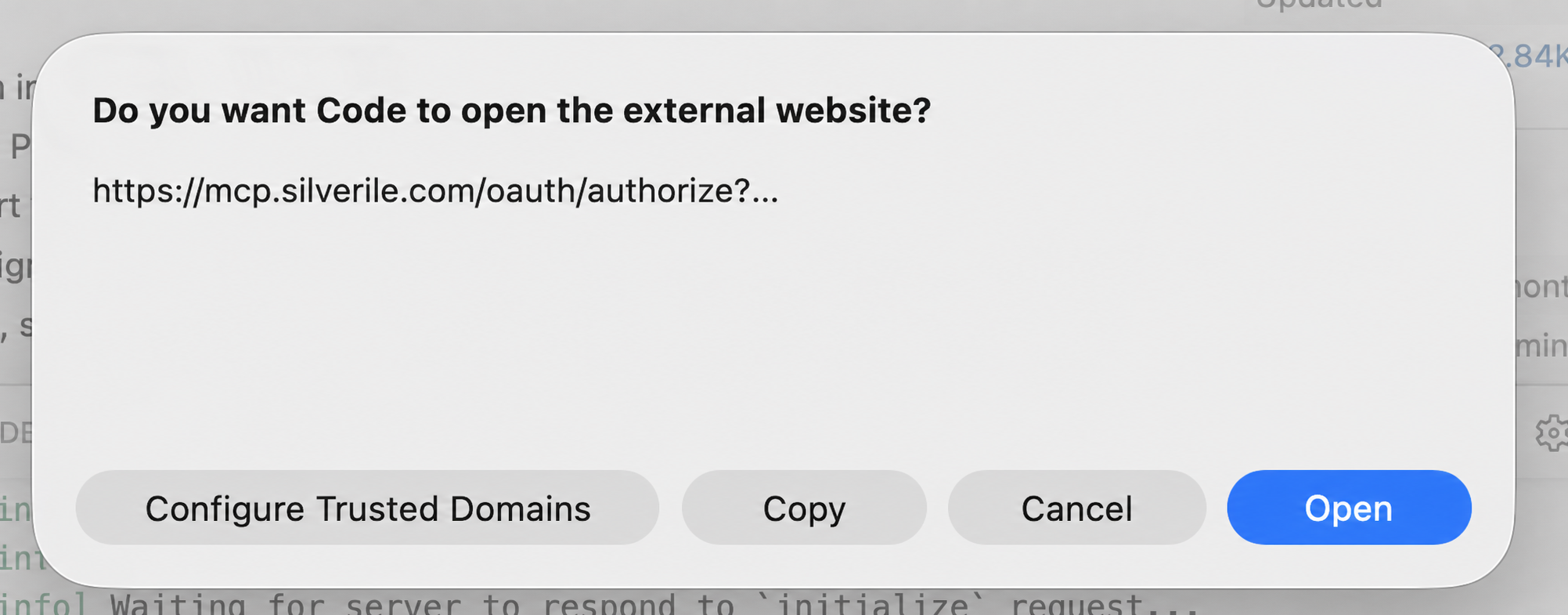
Ctrl+Shift+P / Cmd+Shift+P)mcp.silverile.com, choose Allow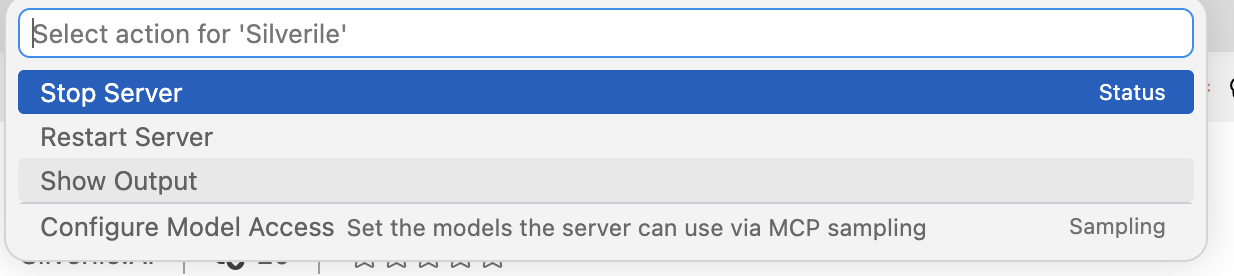
Step 3 — Verify the connection
Discovered ... tools; the number can change as Silverile adds capabilities
Step 4 — Open Chat in Agent Mode
validate Silverile connection or show my current storiesManage the connection
Use MCP: List Servers for all connection actions. Select Silverile to stop or restart the server and open Show Output. If Silverile is running but the authentication prompts never appeared, stop it and start it again.
Validate a story against the codebase
Ask Copilot to check whether a story's acceptance criteria are implemented in your codebase. Copilot fetches the story, optionally includes test cases, then reads your source files and reports each criterion as Met, Partially met, Not met, or Unclear with file and line evidence.
validate story #837 against the codebase
Before running, Copilot will:
Create a story
Describe what you want to build and Copilot creates a structured Silverile story — title, description, acceptance criteria, tasks, and optionally test cases.
create a story for user login with Google OAuth
Copilot will:
Example Agent Mode prompts
Use these in Copilot Chat with Agent Mode enabled. No @ mention needed — Silverile tools are available to the agent automatically.
show my current stories
get story 1569
create a story for user login with Google OAuth
validate story #837 against the codebase
generate test cases for story #88
what stories are in the current sprint?
assign story 2149 dev to me
assign defect 501 qa
fix defect #15
update story 220 status to in progress
.vscode/mcp.json.Connection diagnostics
Open MCP: List Servers → Silverile → Show Output. During a normal first connection, VS Code discovers the protected-resource and authorization-server metadata, opens authentication, completes the MCP initialize request, and reportsDiscovered ... tools.
Discovered resource metadata at https://mcp.silverile.com/.well-known/oauth-protected-resource
Discovered authorization server metadata at https://mcp.silverile.com/.well-known/oauth-authorization-server
Discovered ... tools
When requesting support, include the VS Code version, Silverile extension version, approximate failure time, and the relevant lines from Show Output. Never include credentials, OAuth tokens, Redis connection strings, or a full authorization URL.
Troubleshooting
Output repeatedly says “Waiting for server to respond to initialize request”
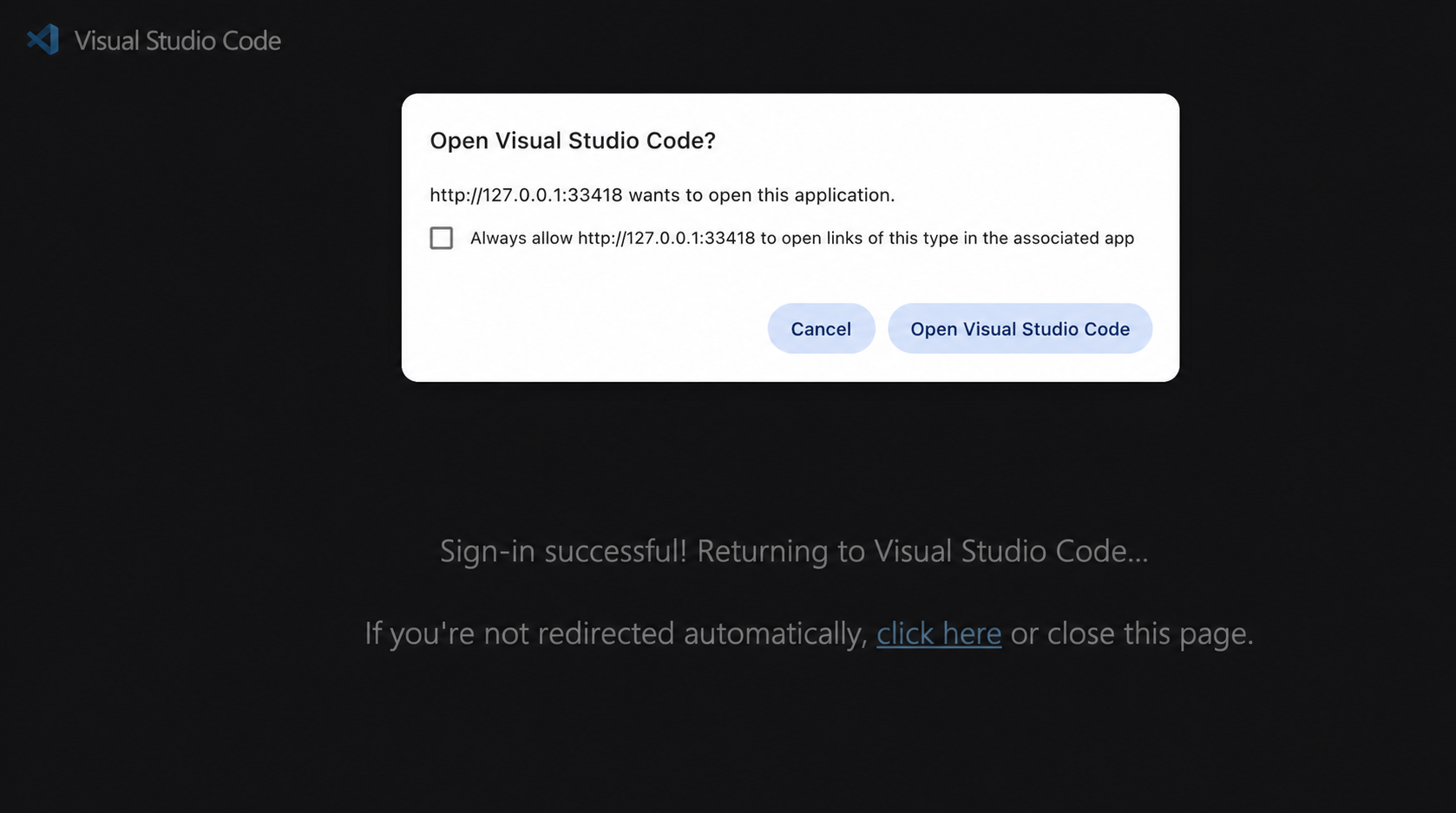
VS Code is usually waiting for authentication. Run MCP: List Servers, select Silverile, choose Stop Server, select it again, and choose Start Server. Complete the Allow, Open, and Open Visual Studio Code prompts.
“Unknown OAuth client or unregistered redirect_uri”
Run Authentication: Remove Dynamic Authentication Providers from the Command Palette and remove only the production provider containing mcp.silverile.com. Then stop and start Silverile and authenticate again. This clears the stale VS Code OAuth registration without uninstalling the extension.
Silverile tools do not appear in Agent Mode
Open MCP: List Servers → Silverile → Show Output. A successful connection ends with “Discovered … tools.” Then open Chat and enable the Silverile tools in the tool picker.
Authentication completed in the browser but VS Code is still waiting
Return to the browser tab and choose Open Visual Studio Code in the final browser prompt. If that prompt was dismissed, use the “click here” return link on the success page.
“API key invalid” or connection error
Reset the Silverile dynamic authentication provider in VS Code, stop and start the server, and authenticate again. Confirm that the API key is still active in Silverile.
The first MCP request returns 401
This is expected before authentication. VS Code uses the 401 challenge to discover the OAuth server and open the authorization flow.
New Silverile tools are not visible after a server update
Run MCP: List Servers, select Silverile, and choose Restart Server. Use Show Output to confirm that VS Code discovered the current tool list.
Chat is not in Agent Mode
Open Chat from the Activity Bar, use the mode selector to switch to Agent Mode, and enable Silverile in the tool picker.
The extension is not activating
Confirm VS Code is version 1.105.0 or later and GitHub Copilot is installed. Open the Extensions view and verify Silverile.AI is enabled.