Google Antigravity Integration
AI IntegrationsConnect Antigravity to the hosted Silverile MCP server using its MCP configuration file, then complete the one-time browser authorization-code flow.
Prerequisites
- A Silverile account with at least one project
- Google Antigravity installed and open
Step 1 — Open the MCP configuration
mcp_config.json in a plain-text editor, such as TextEdit.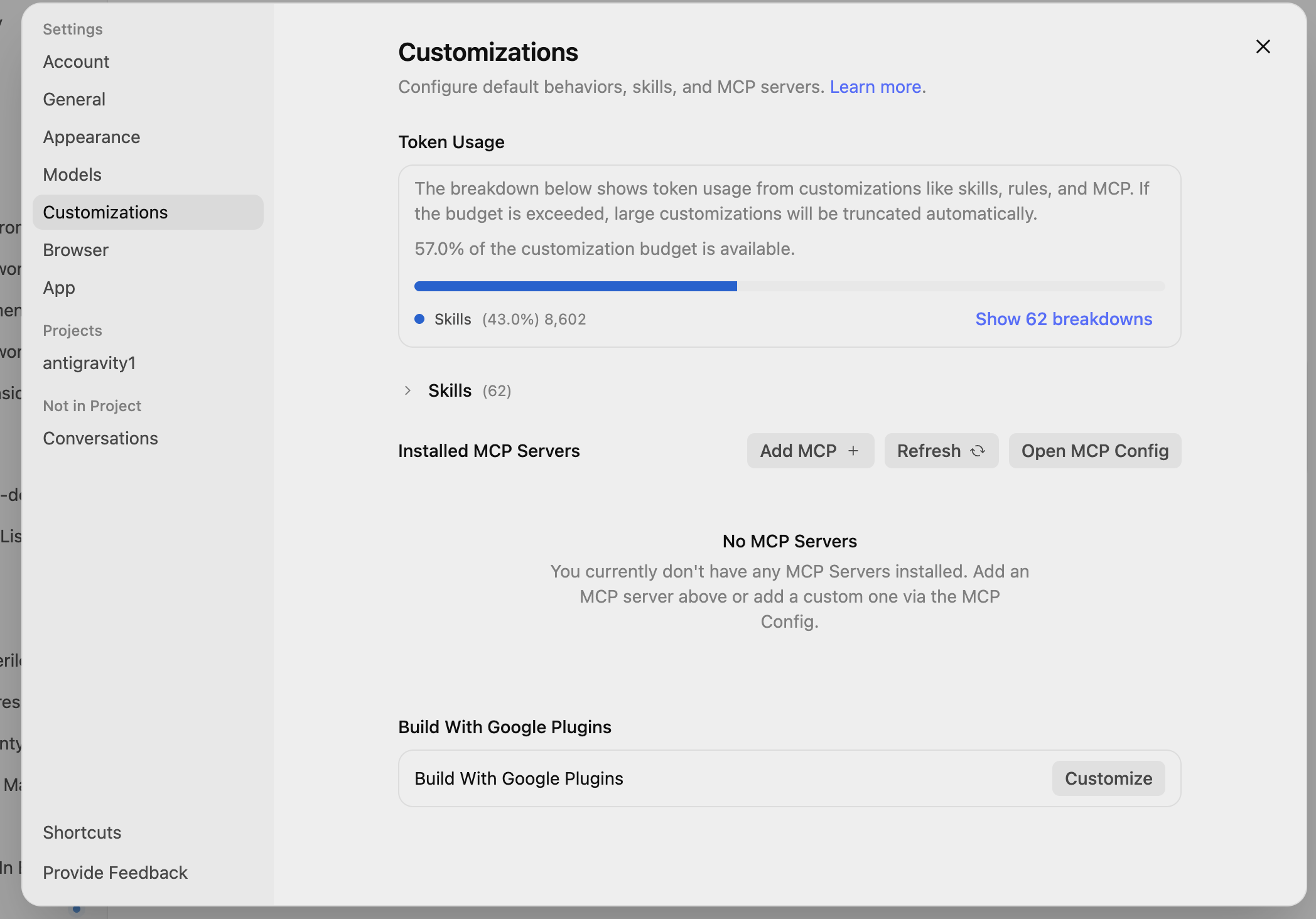
Open Settings → Customizations, then select Open MCP Config.
The default file locations are:
| Platform | Path |
|---|---|
| macOS / Linux | ~/.gemini/antigravity/config/mcp_config.json |
| Windows | %USERPROFILE%\.gemini\antigravity\config\mcp_config.json |
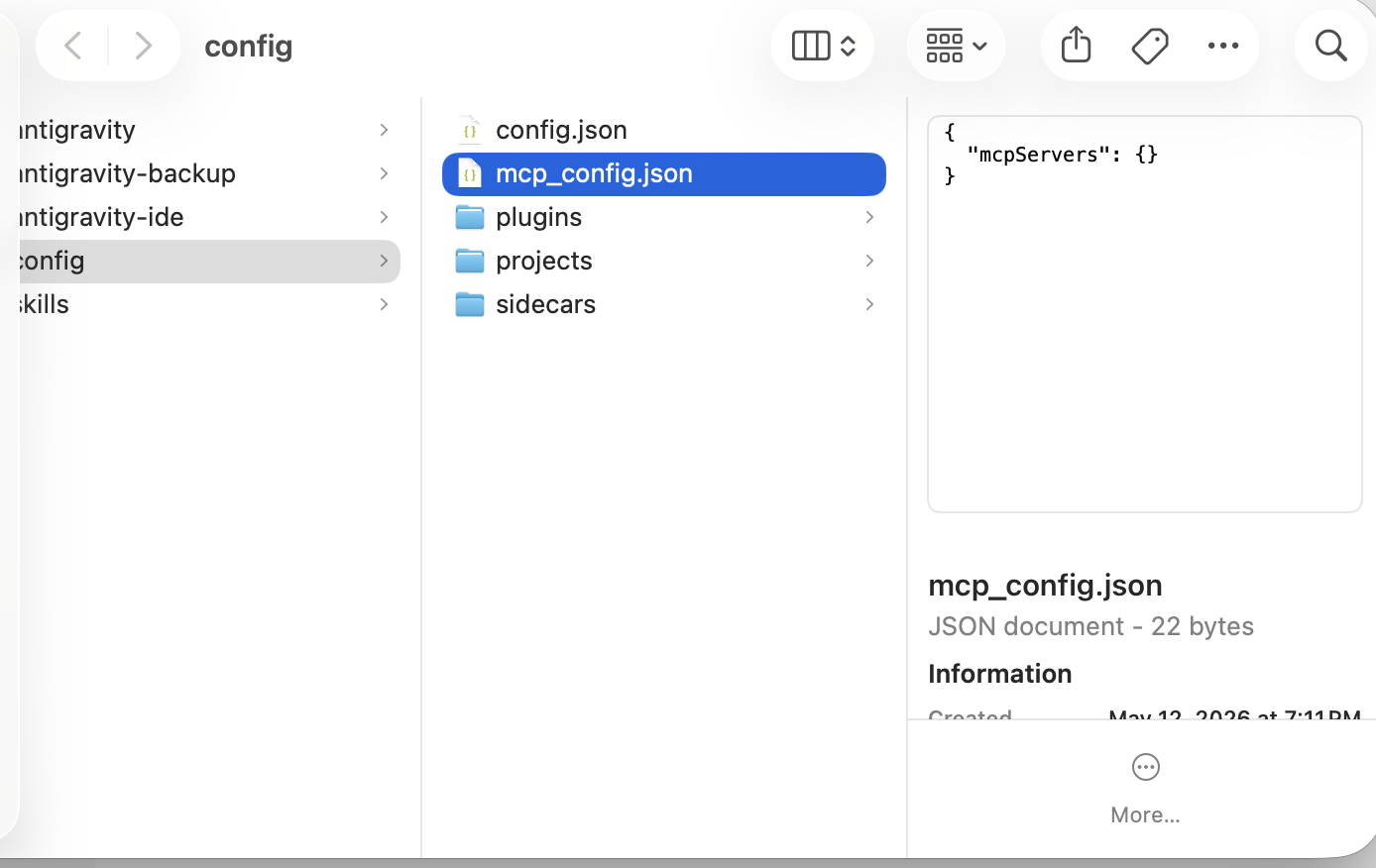
The mcp_config.json file is in Antigravity’s config folder.
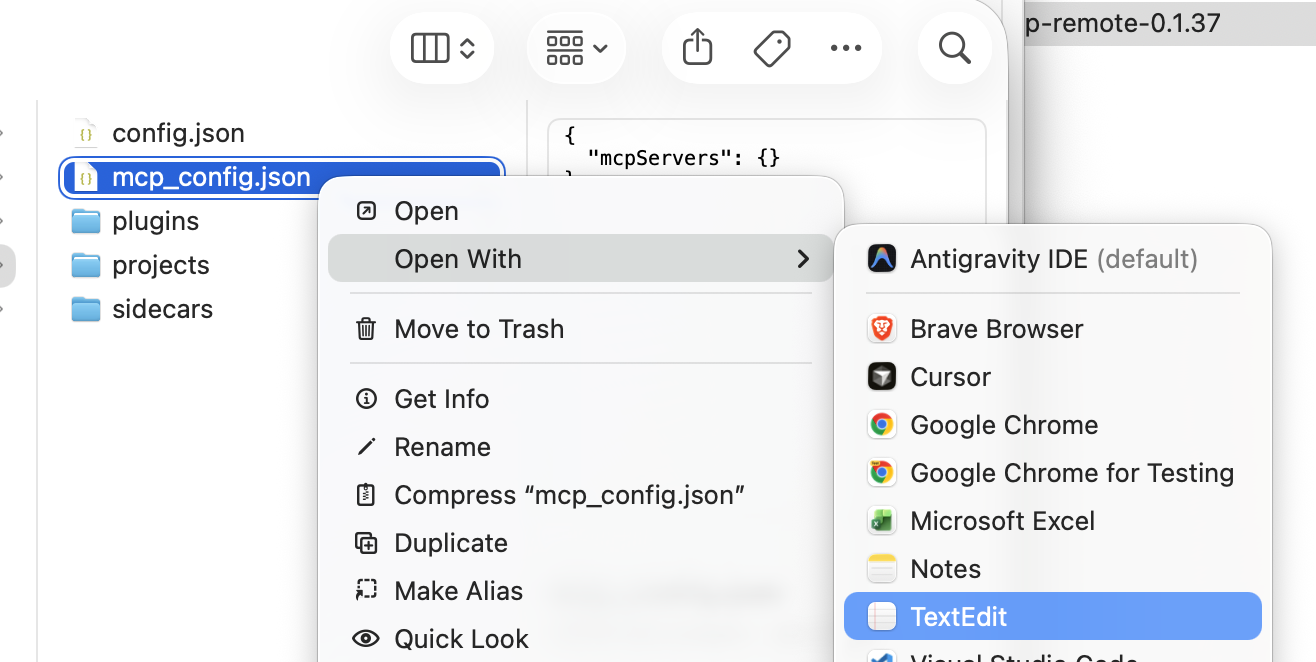
On macOS, right-click the file and choose Open With → TextEdit.
Step 2 — Add the Silverile server
Add this entry under mcpServers:
{
  "mcpServers": {
    "silverile": {
      "type": "http",
      "url": "https://mcp.silverile.com/mcp",
      "oauth": {
        "clientId": "silverile-mcp"
      }
    }
  }
}headers, an Authorization value, or a bearer token.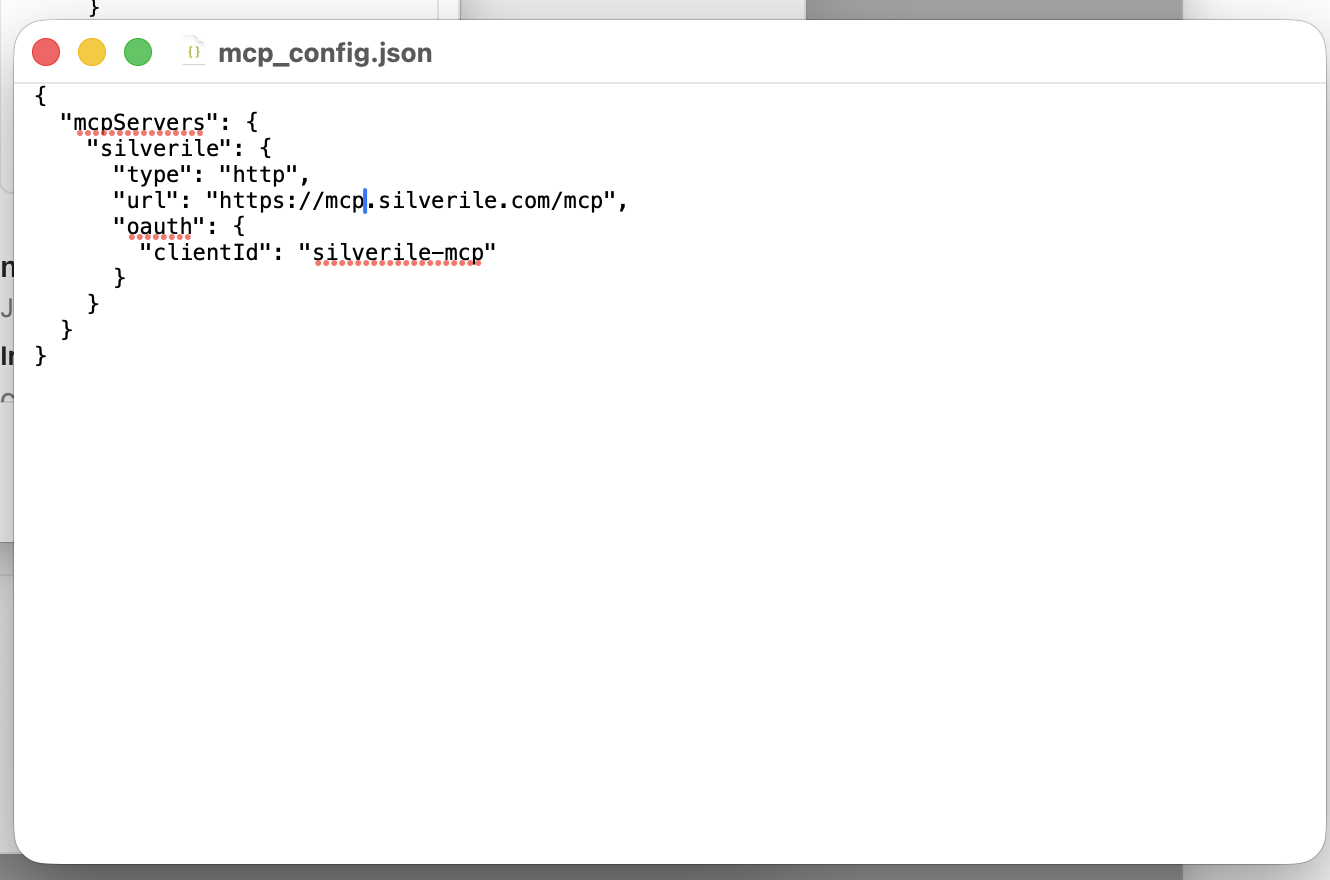
Save the Silverile server configuration in mcp_config.json.
Step 3 — Authenticate and verify
mcp_config.json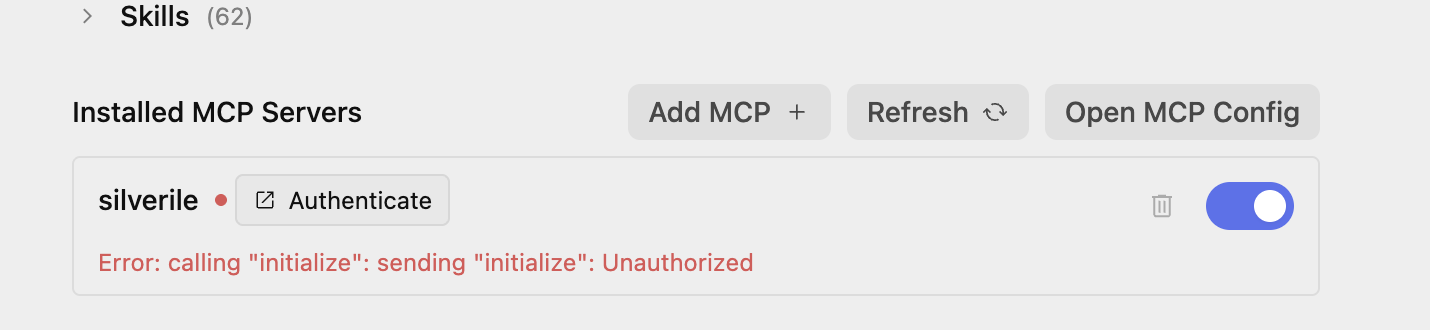
The initial Unauthorized message is expected; select Authenticate to start authorization.
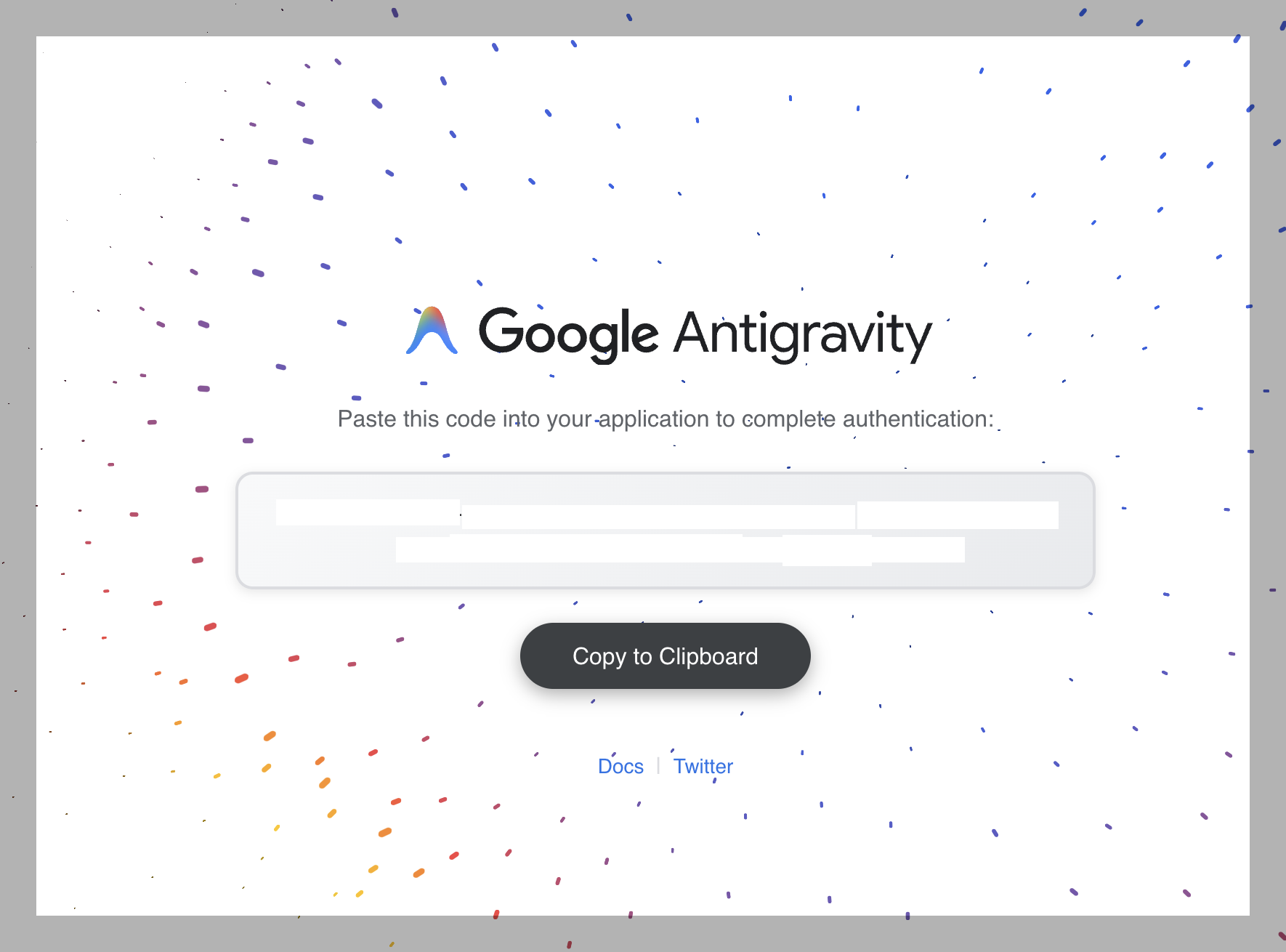
Copy the authorization code from the Google Antigravity page.
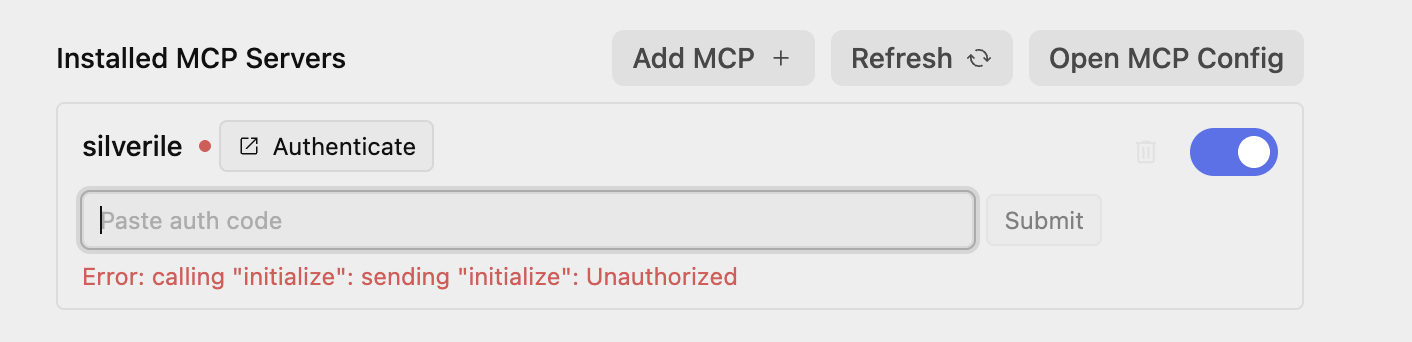
Paste the code into Antigravity and select Submit, then click Refresh again.
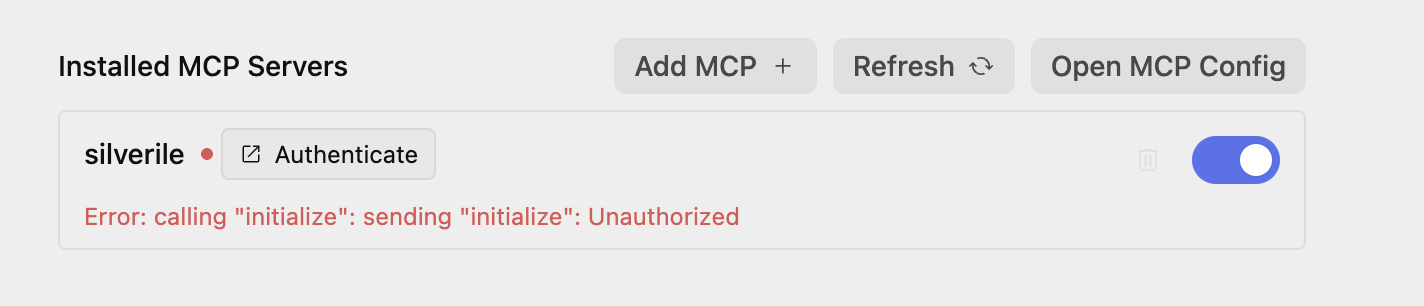
If Unauthorized remains after submission, select Refresh again to show the updated connection.
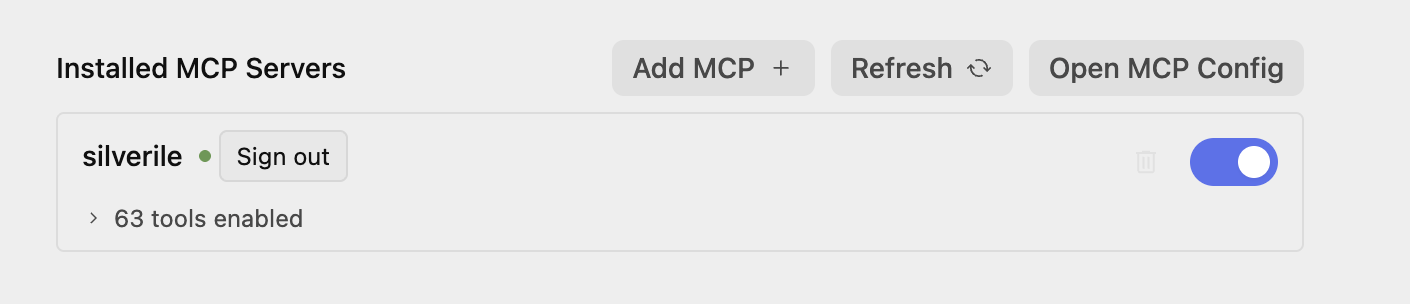
A green status indicator and enabled tools confirm that Silverile is connected.
Troubleshooting
The Silverile server does not appear after saving the file
Return to Settings → Customizations and click Refresh. Confirm that the file is saved as mcp_config.json in the config folder.
The server still shows Unauthorized after submitting the code
Click Refresh again. Antigravity may need a second refresh to display the connected server and its tools.
The first initialize request returns 401
This is expected before OAuth. Antigravity uses the response to discover the Silverile authorization endpoints.
The authorization page shows a code instead of a Silverile login form
This is expected. Copy the entire code, return to Antigravity, paste it into the auth-code field, and select Submit.
"Unknown OAuth client or unregistered redirect_uri"
Delete the Silverile entry, restart Antigravity, add the entry again, and authenticate. This creates a current OAuth client registration.
Tools are not visible after the second refresh
Restart Antigravity, return to Settings → Customizations, and click Refresh. Then authenticate again if the server prompts you to do so.