Codex Desktop: Silverile MCP
IntegrationsUse this guide to add and manage the Silverile MCP server in Codex Desktop. The same server configuration is shared by Codex Desktop, the Codex CLI, and the Codex IDE extension on this computer.
Before you begin
- Use the latest Codex Desktop app.
- Have Node.js 18 or later installed so Codex can run npx.
- Have a Silverile account with access to at least one project.
- Know your Silverile user ID and password.
Add Silverile MCP
In Codex Desktop, complete these steps:
npx.-y
mcp-remote@0.1.38
https://mcp.silverile.com/mcp
--transport
http-only
--host
127.0.0.1
--static-oauth-client-info
{"client_id":"silverile-mcp"}
--static-oauth-client-metadata
{"scope":"openid profile email silverile:mcp offline_access"}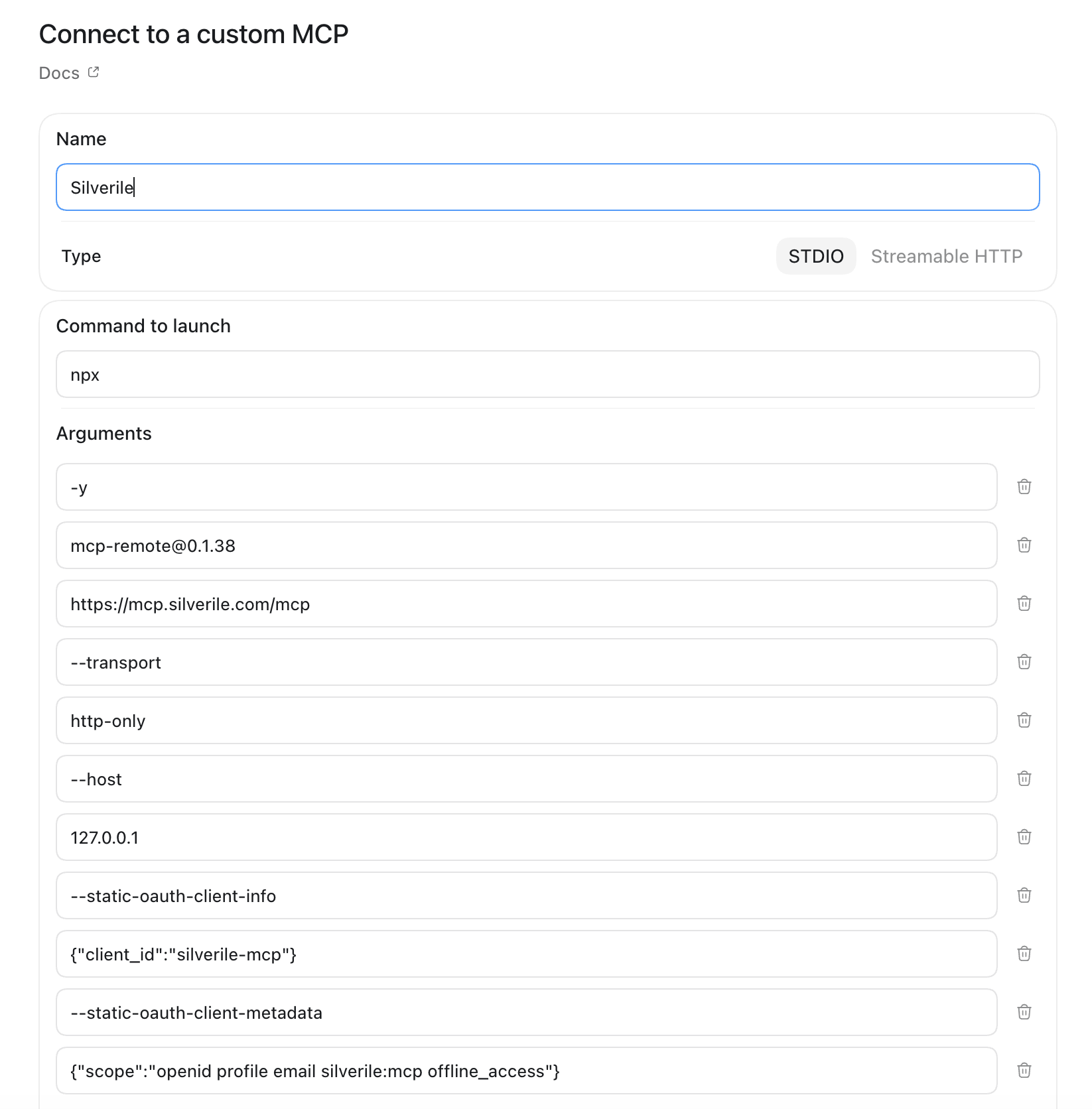
Enter Silverile as a STDIO server, then add each argument on its own row.
Under Environment variables, add the following value. Replace<your-mac-user-name> with your macOS account name:
| Key | Value |
|---|---|
MCP_REMOTE_CONFIG_DIR | /Users/<your-mac-user-name>/.mcp-auth/silverile |
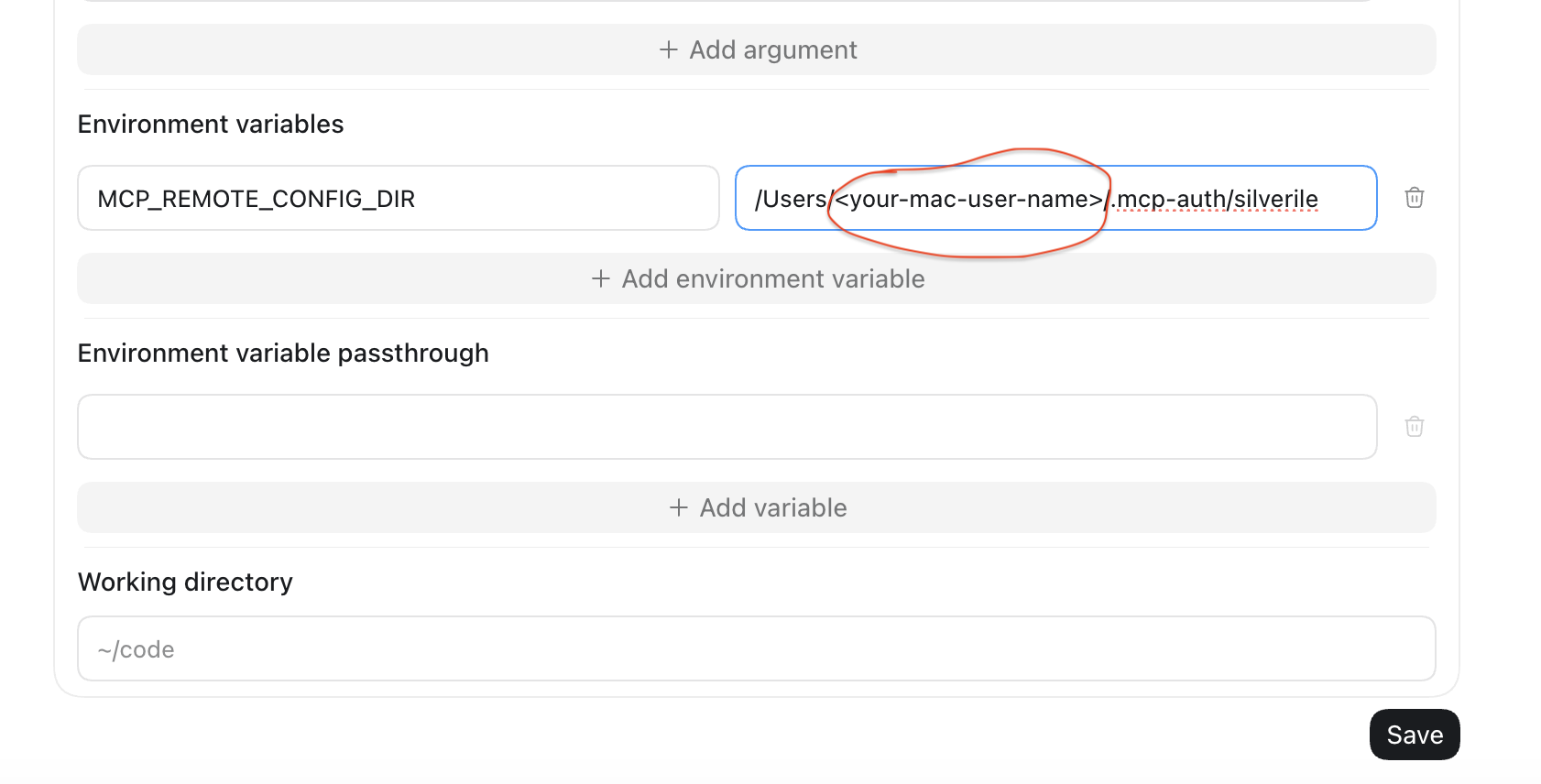
Replace the highlighted placeholder with your macOS account name.
Leave Environment variable passthrough empty. Select Saveor Add, then select Restart when Codex requests it.
mcp-remote bridge above so Codex can complete its OAuth sign-in with the registered Silverile MCP client. The environment variable gives Silverile its own local sign-in cache, so logging out of Silverile does not sign out other mcp-remote servers.Log in and connect
To confirm it is ready, open a new Codex task and ask:
Codex should confirm the active Silverile project. You can also type /mcp in a task to view connected MCP servers.
Manage your connection
Update the server configuration
Go to Settings → MCP servers → Silverile. Update the command or arguments, select Save, and restart Codex. Keep the arguments in the exact order shown above. If you need to change the server type, select Uninstall first, then add the server again with the correct type.
Log out
Codex does not provide a Logout button for this STDIO server. Close Codex, then clear Silverile's dedicated mcp-remote authentication cache in a terminal. Replace<your-mac-user-name> with the same value used in the server settings:
rm -rf /Users/<your-mac-user-name>/.mcp-auth/silverile
This removes only the locally cached Silverile MCP sign-in. It does not affect other MCP servers or change the Silverile account password.
Log in again
Restart Codex and open a new task. Ask Codex to validate the Silverile connection. The Silverile sign-in page opens in your browser; enter your user ID and password, then select a project.
Change User
Remove Silverile MCP
Go to Settings → MCP servers → Silverile, select Uninstall, confirm the removal, and restart Codex. This removes the server from this computer's shared Codex configuration. To also sign out of Silverile, complete the logout steps above before restarting. Add the server again later using the instructions above.
Troubleshooting
The Silverile sign-in page does not open
Save the server and restart Codex. Open a new task and ask Codex to validate the Silverile connection. If no browser window opens, clear the mcp-remote authentication cache using the logout steps below, then restart Codex.
The wrong Silverile user is connected
Log out of the Silverile MCP server, then log in again with the new user’s Silverile user ID and password. Do not edit the client ID, scopes, or endpoint to change users.
“Unknown OAuth client” or “unregistered redirect_uri”
Remove the Silverile server, add it again with every argument shown above, restart Codex, and authenticate again. This recreates the local OAuth registration.
My Silverile password is not accepted
Check that you can sign in to Silverile with the same user ID and password. Reset your password if needed, then start the MCP login again.
Silverile tools do not appear in a task
Restart Codex after authentication, open a new task, and type /mcp to check that Silverile is connected. Then ask Codex to validate the Silverile connection.