IntelliJ: Silverile MCP
IDEConnect Silverile to IntelliJ AI Assistant with a local npx bridge. The same Silverile MCP connection is available to supported AI Assistant agents, including Codex and GitHub Copilot.
What you can do
After connecting, use an AI Assistant chat to ask:
Before you begin
- IntelliJ IDEA with JetBrains AI Assistant installed and enabled
- Node.js 18 or later, which provides npx
- A Silverile account with access to at least one project
- Your Silverile user ID and password
Step 1 — Open MCP settings
Step 2 — Add the Silverile configuration
Paste the configuration below into JSON configuration. Replace<your-mac-user-name> with your actual macOS account name. For example, a user named jane uses /Users/jane/.mcp-auth/silverile-intellij.
{
  "mcpServers": {
    "Silverile": {
      "command": "npx",
      "args": [
        "-y",
        "mcp-remote@0.1.38",
        "https://mcp.silverile.com/mcp",
        "16063",
        "--transport",
        "http-only",
        "--host",
        "127.0.0.1",
        "--static-oauth-client-info",
        "{\"client_id\":\"silverile-mcp\"}",
        "--static-oauth-client-metadata",
        "{\"scope\":\"openid profile email silverile:mcp offline_access\"}"
      ],
      "env": {
        "MCP_REMOTE_CONFIG_DIR": "/Users/<your-mac-user-name>/.mcp-auth/silverile-intellij"
      }
    }
  }
}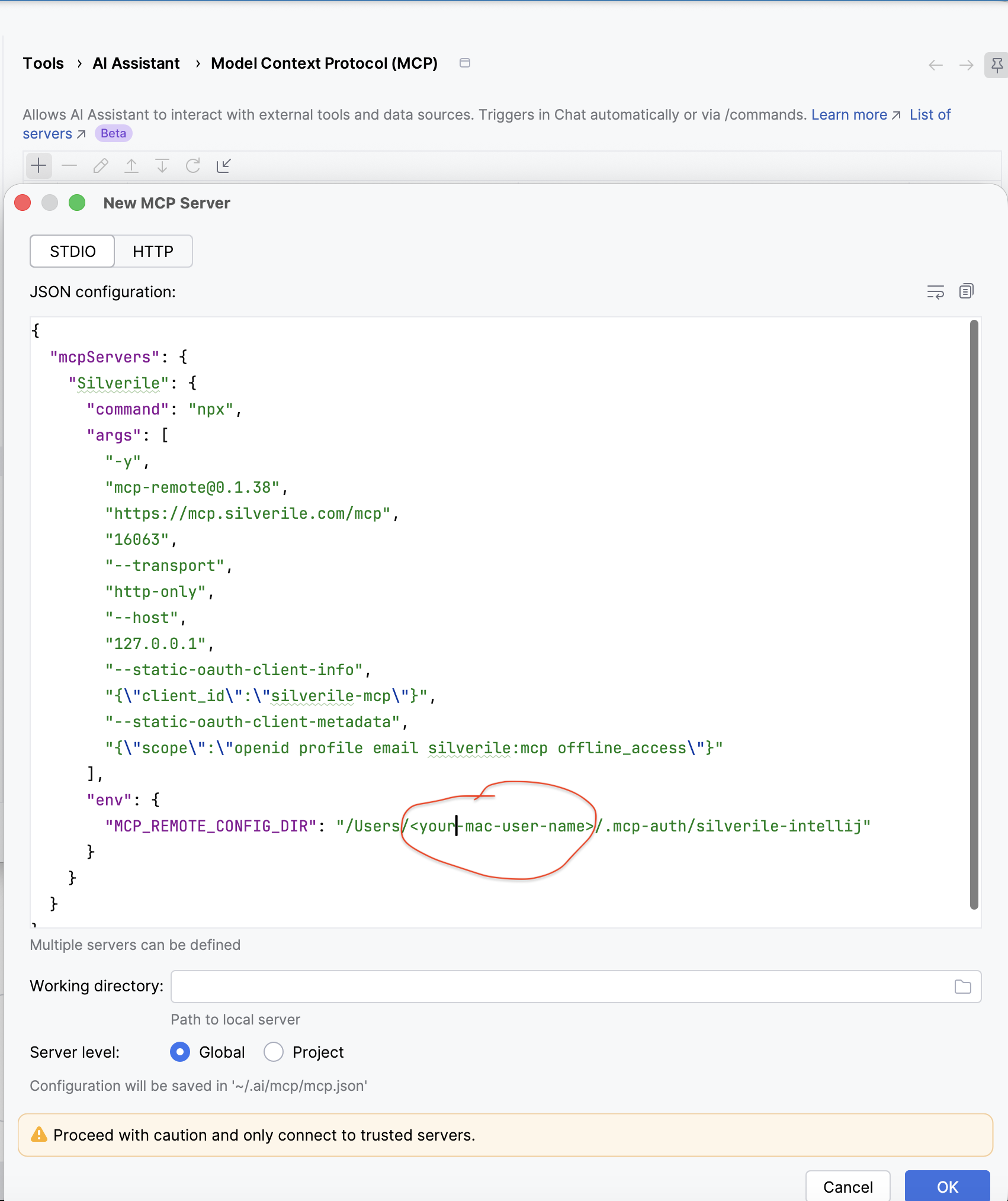
Select STDIO, paste the configuration, replace the macOS account-name placeholder, and keep Server level set to Global.
16063 immediately after the MCP URL. It gives IntelliJ its own OAuth callback port so it does not conflict with the Codex Desktop setup, which commonly uses a different port.Leave Working directory empty, choose Global, then select OK and Apply.
Step 3 — Sign in to Silverile
If your browser already has an active Silverile session, it can complete this step without asking for credentials again.
Step 4 — Verify the connection
Open a new AI Assistant chat, select either Codex or GitHub Copilot, and ask:
A successful response confirms your Silverile user and active project. If no project is active, ask:
Manage the connection
Update the setup
Go to Settings → Tools → AI Assistant → Model Context Protocol (MCP), select Silverile, and choose Edit. Update the JSON, select OK, then select Apply. Start a new chat after changing the configuration.
Log out or change user
Remove only IntelliJ's Silverile authentication cache, then reconnect Silverile:
rm -rf /Users/<your-mac-user-name>/.mcp-auth/silverile-intellij
Replace the placeholder with your macOS account name. To sign in as a different user, also sign out of Silverile in your browser before reconnecting; otherwise browser single sign-on can select the existing user automatically.
Remove Silverile MCP
Removing the server does not delete the saved sign-in cache. Run the logout command above if you also want to remove IntelliJ's stored Silverile session.
Troubleshooting
Expected status code 200 but was 401
The direct HTTP server cannot complete Silverile OAuth in this IntelliJ setup. Remove that entry and add Silverile using the STDIO npx configuration in this guide.
zsh: command not found: npx
Install a current Node.js release, restart IntelliJ, then reconnect Silverile. Node.js provides the npx command used to start mcp-remote.
EADDRINUSE or address already in use
Another MCP client is using the OAuth callback port. This guide assigns IntelliJ port 16063 so it does not clash with the Codex Desktop example. If 16063 is in use, choose another unused port, such as 16064, and replace only the 16063 argument in the JSON.
EACCES: permission denied, mkdir /Users/...
Check the MCP_REMOTE_CONFIG_DIR value carefully. Replace <your-mac-user-name> with your actual macOS account name; do not leave the placeholder in the path or misspell it.
The Silverile login page does not ask for my credentials
This is normal when your browser already has an active Silverile sign-in session. IntelliJ still receives and stores its own Silverile MCP tokens in the silverile-intellij cache directory.
Silverile tools do not appear in chat
Confirm Silverile has a green status in the MCP settings, then start a new AI Assistant chat. If the server was removed, an existing chat can retain its previously loaded tool list until you close the chat or restart IntelliJ.