Clone & Split Story
StoriesOverview
Silverile provides two ways to create a new story based on existing work:
- Clone Story — creates a copy of an existing story with its fields pre-filled in the standard create story form. Good for repeating the same work in a different context.
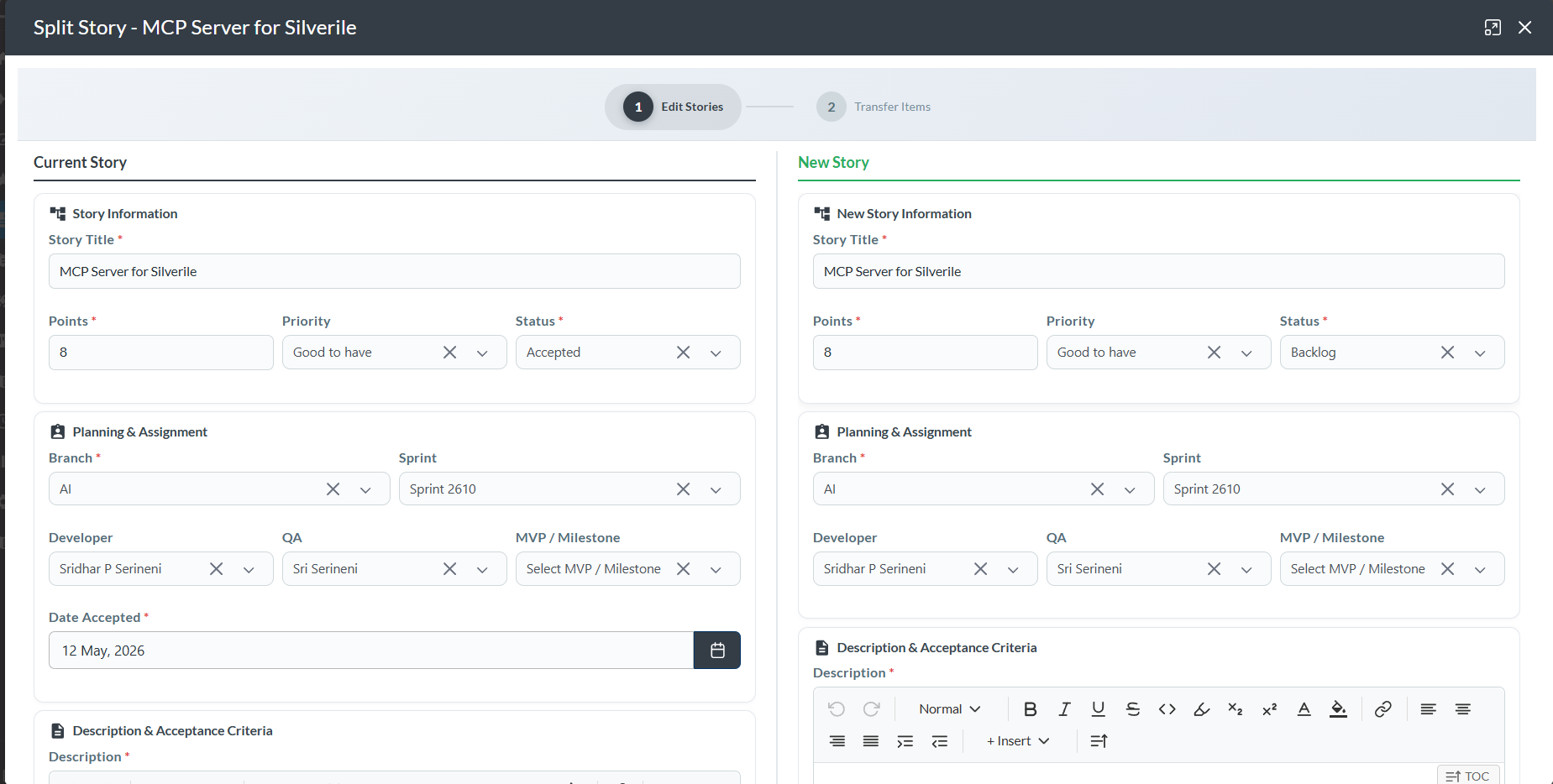
- Split Story — opens a two-panel form showing the original story on one side and a new story on the other. You can update the original and create the new story at the same time. Good for breaking an oversized story into two focused ones.
Both options are accessed from the ⋮ More actions menu on any story detail page.
Cloning a story
Clone opens the standard create story wizard with the original story's fields already filled in. You edit the pre-filled values as needed and save it as a new story.
What gets pre-filled when cloning
| Field | Pre-filled | Notes |
|---|---|---|
| Title | Yes | Pre-filled from the original. Edit before saving to avoid duplicate titles. |
| Branch | Yes | Same parent branch as the original. |
| Associated Branch | Yes | Pre-selected from the original. Can be changed before saving. |
| Points | Yes | Same estimate as the original. |
| Priority | Yes | Same priority as the original. |
| Sprint | Yes | Pre-filled with the original story's sprint. Change if the clone should go to a different sprint. |
| Developer | Yes | Pre-filled with the original's assigned developer. |
| QA | Yes | Pre-filled with the original's assigned QA member. |
| Description | Yes | Full description content is pre-filled. |
| Acceptance Criteria | Yes | All criteria pre-filled unchecked. |
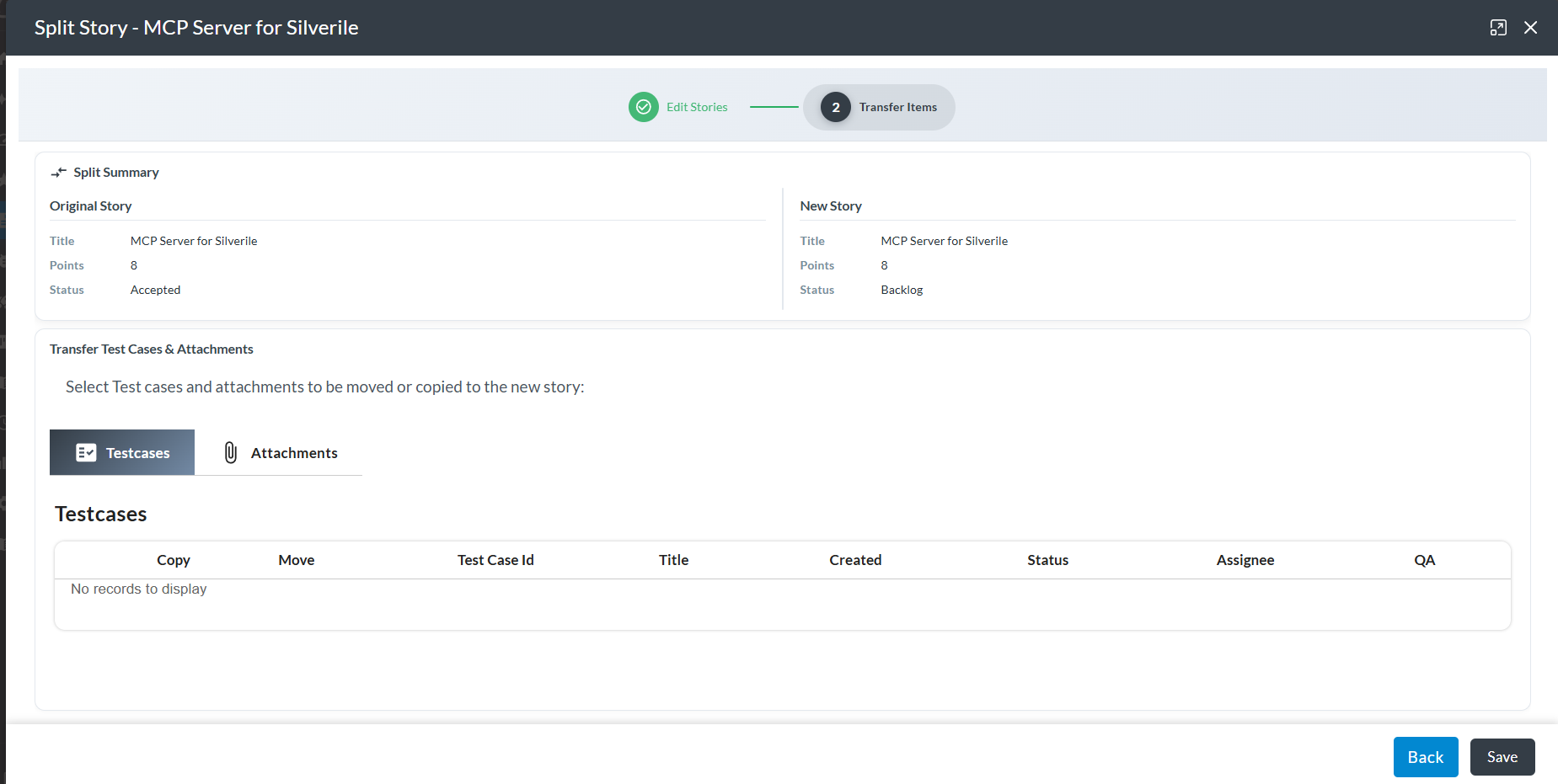
| Test Cases | Optional | Linked test cases are shown on the Test Cases page — select which ones to copy to the clone. |
| Attachments | Optional | Attachments from the original are shown on the Attachments page — select which ones to copy across. |
Splitting a story
Split Story opens a two-panel form. The left panel shows the original story — you can update its fields (title, points, description, acceptance criteria, etc.) to reflect the reduced scope after the split. The right panel is the new story form, pre-filled with the original's values — edit it to define the work being split out.
Troubleshooting
I don't see "Clone Story" in the more menu
Clone Story requires contributor access or above. If the option is missing, check your role with the project manager.
I don't see "Split Story" in the more menu
Split Story requires contributor access or above. If the option is missing, check your access level with the project manager.
I want the cloned story in a different sprint
The Sprint field is pre-filled from the original. Change it on the clone form before clicking Continue to assign the clone to a different sprint.
After splitting, the original story still has the same points
The split form lets you edit the original story's fields before confirming. Update the points on the left-hand side of the split form before clicking Save.
I want to undo a split
There is no automatic undo for a split. The original story's changes and the new story are both saved immediately on confirm. If needed, manually revert the original story's fields and delete the new story.