Story List
StoriesOverview
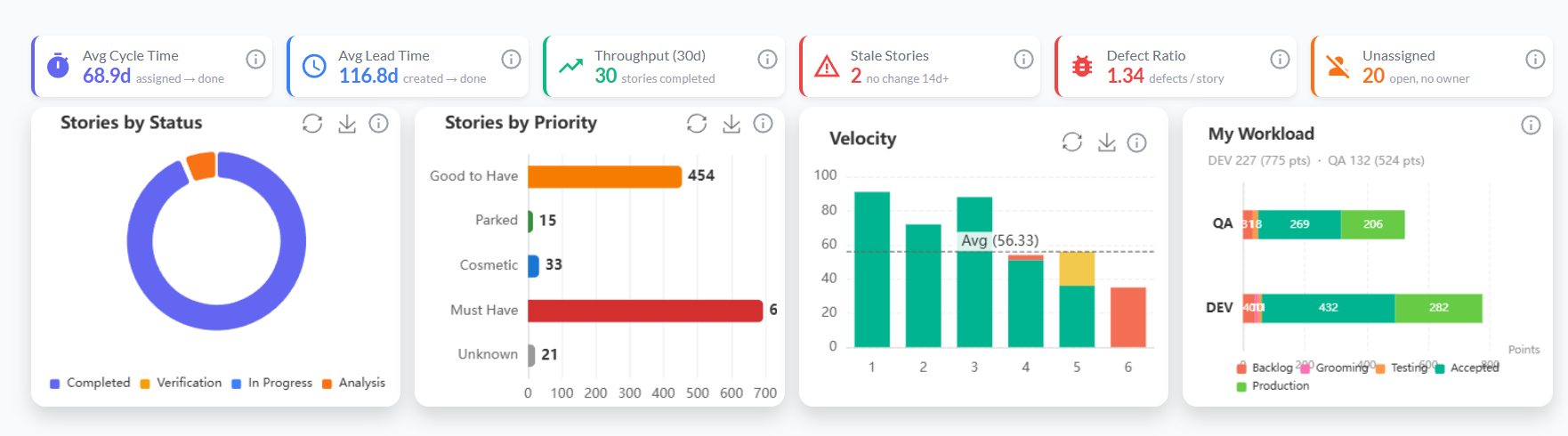
The Story List shows every story in the project in a flat, searchable, filterable table. Unlike the Backlog (which shows only unscheduled stories) or the Board (which shows one sprint at a time), the Story List gives you a complete cross-sprint view — useful for reporting, auditing, and finding specific stories quickly.
Getting there
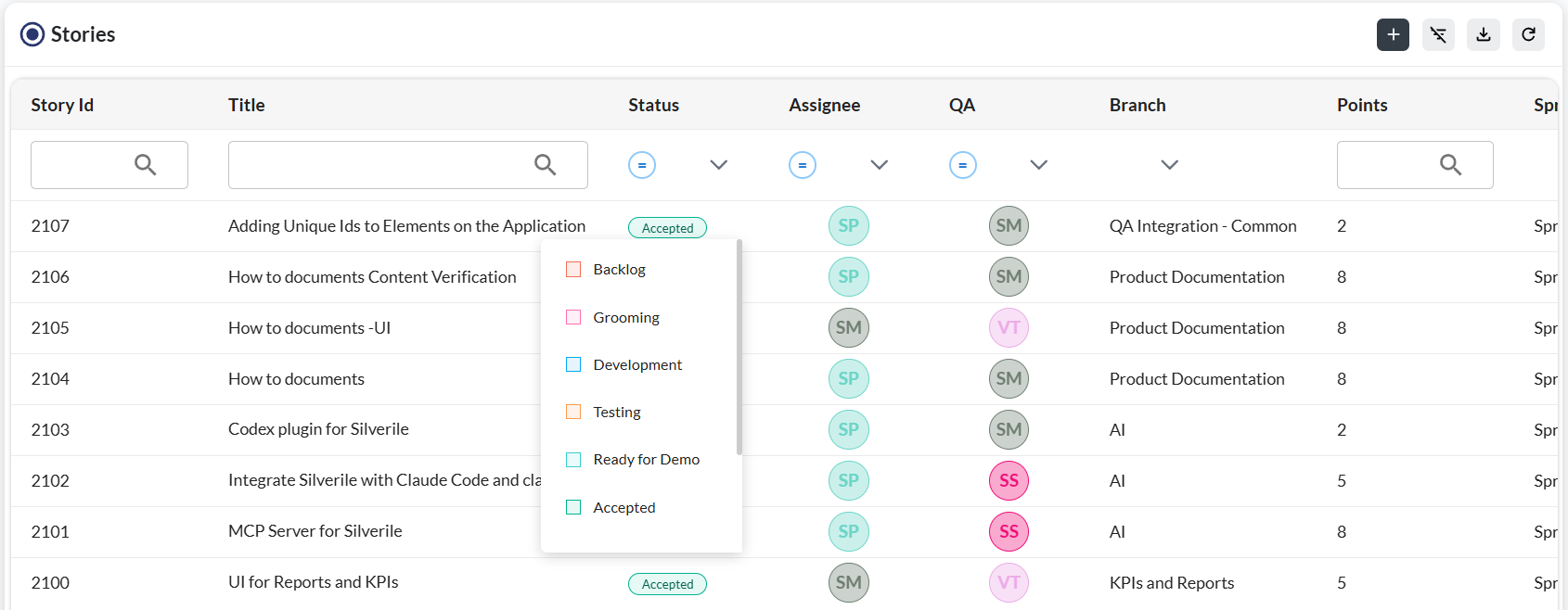
List columns
Click any column header to sort by that column. Click again to reverse the sort order.
| Column | What it shows |
|---|---|
| ID | Auto-generated story identifier. Click to open the story detail view. |
| Title | Story summary. Click to open and edit. |
| Branch | The parent branch this story belongs to. A branch groups related stories together above the sprint level. |
| Status | Current workflow stage — Backlog, Grooming, In Development, Testing, Ready, Accepted. |
| Priority | Critical, High, Medium, or Low. |
| Story Points | Effort estimate. Blank = unestimated. |
| Milestone | The milestone or MVP this story is contributing to. |
| Sprint | The sprint this story is assigned to. Blank = backlog. |
| Developer | Team member responsible for implementing the story. |
| QA | Team member responsible for testing and verifying the story. |
| Created | Date the story was created. |
| Updated | Date the story was last modified. |
Filtering and searching
Use the search box to find stories by title or ID. Use the filter bar to narrow results by one or more criteria:
| Filter | What it does |
|---|---|
| Status | Show only stories at a particular workflow stage. |
| Sprint | Filter by a specific sprint, or show backlog-only (no sprint assigned). |
| Branch | Filter by parent branch to see all stories grouped under it. |
| Milestone | Filter by milestone to see stories contributing to a specific MVP or goal. |
| Assigned To | Show stories assigned to a specific team member. |
| Priority | Focus on Critical or High items. |
Multiple filters stack — for example, filtering by Status = "In Development" and Assigned To = "Alice" shows only Alice's in-progress stories. Click Clear Filters to reset all at once.
Inline editing
You can edit many fields without opening the story detail view. Click any editable cell — points, assignee, priority, status, or sprint — to edit it inline. Changes save immediately when you click away or press Enter.
To edit the title, description, or acceptance criteria, click the story ID or title to open the full detail view.
Troubleshooting
The story list is empty but I know stories exist
Check active filters — a combination of filters may be returning zero results. Click Clear Filters to reset and show all stories.
I can't see stories from other sprints
The Sprint filter may be set to the active sprint only. Set it to All Sprints to see every story regardless of sprint assignment.
A story I created isn't appearing in the list
New stories default to Backlog status with no sprint. If your list has a status or sprint filter active, the new story may be filtered out. Clear filters to find it.
Inline edits aren't saving
Click outside the cell or press Enter to commit an inline edit. If changes aren't persisting, check your internet connection — the list uses live saves and needs connectivity.
I can't bulk delete stories
Bulk delete requires project manager or admin access. Contributors can bulk-move and bulk-assign but not bulk-delete. Contact your project manager if you need to remove multiple stories.