Story Detail View
StoriesOverview
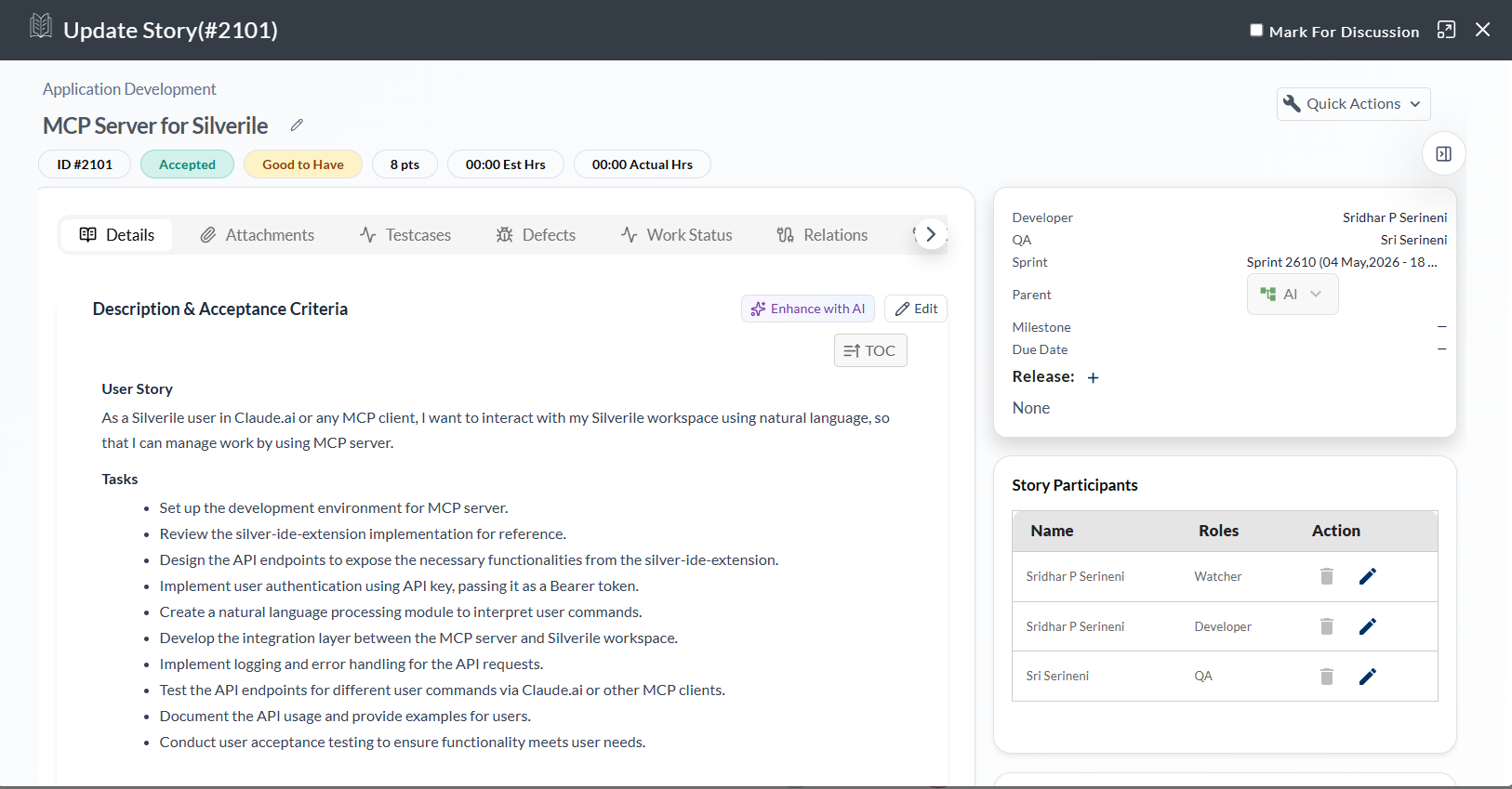
The story detail view is the full page for a single story. It brings together everything relevant to that story — header fields, tabbed content panels, sidebar assignment fields, a remarks section, and a complete history — in one place.
Open a story by clicking its title or ID anywhere in Silverile — the backlog, sprint board, story list, or Scrum View.
Page layout
The page is divided into three main areas: the header bar at the top, a tab panel in the centre, and a sidebar on the right for assignment and planning fields. The sidebar includes Sprint, MVP, Release, Developer, QA, Estimated Hours, Actual Hours, and Story Participants. A Remarks section sits below the tab panel.
The header bar runs across the top of the story and shows the four key fields at a glance:
- Title — click to edit inline. Supports plain text up to the configured character limit.
- Status — click the status badge to move the story to a different workflow stage.
- Priority — click to change priority (e.g. Low, Medium, High, Critical).
- Points — story point estimate. Click to update the value.
Details tab
The Details tab is the first tab and contains the two primary content fields:
- Description — full context and background for the story. Supports rich text: headings, bullet lists, code blocks, tables, and links. Click the Edit button on the field to open the editor.
- Acceptance Criteria — numbered list of conditions that must be met for the story to be accepted. Click the Edit button to edit criteria. Each criterion can be individually checked off during testing. When all criteria are checked, a visual indicator confirms full coverage.
All tabs
| Tab | What it contains |
|---|---|
| Details | Description and Acceptance Criteria. Both are rich-text fields editable inline. |
| Attachments | Files, screenshots, and documents attached to the story. |
| Test Cases | Test cases linked to this story. Pass/fail status from the latest test run is shown inline. |
| Defects | Defects linked to this story, shown with severity and current status. |
| Work Status | Time tracking for tasks — log time spent and update task progress. |
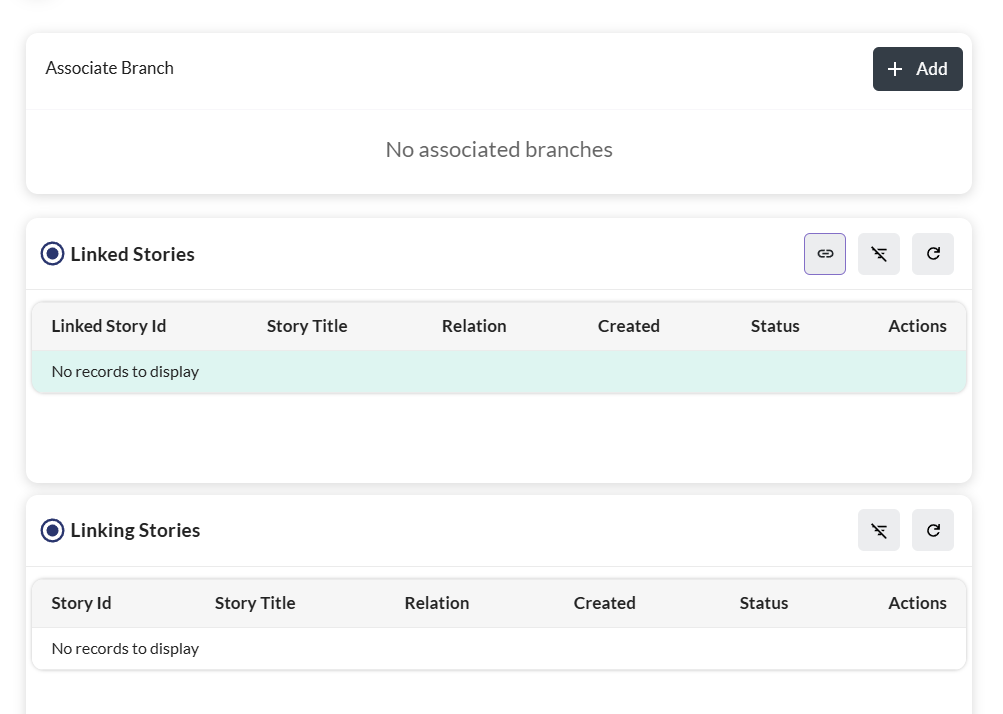
| Relations | Stories linked as related, blocked-by, or blocking. Shows the linked story's status. |
| Prompts | AI-generated prompts and manually added notes associated with this story. |
| Compendium Documents | Reference documents and supporting materials attached at the story level. |
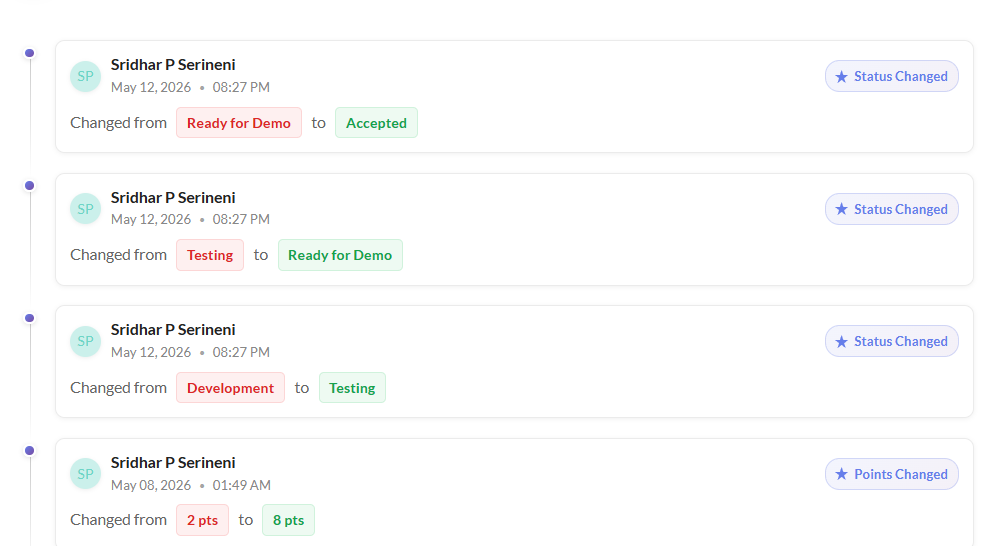
| History | Full audit trail of every change — field edits, status transitions, assignments — with timestamps. |
Sidebar fields
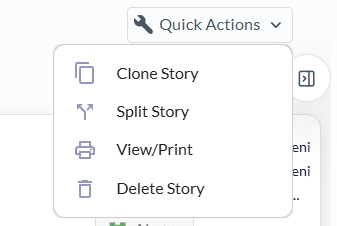
The sidebar on the right side of the story holds the planning and assignment fields. All fields are editable inline — click any value to open a dropdown or picker.
| Field | What it does |
|---|---|
| Sprint | The sprint this story is assigned to. Change to move the story between sprints. |
| MVP | The milestone or MVP this story contributes to. |
| Release | The release this story is scoped to. |
| Developer | The team member responsible for implementing the story. |
| QA | The team member responsible for testing and verifying the story. |
| Estimated Hours | The estimated time to complete this story, entered during planning. |
| Actual Hours | The time actually spent on this story, logged through the Work Status tab or timesheet. |
| Story Participants | Team members who follow this story and receive notifications when it changes. |
Remarks
The Remarks section sits below the tab panel at the bottom of the story detail page. Use it for general notes, decisions, or context that doesn't belong in the Description or as a formal comment. Remarks support rich text and are visible to all project members who can view the story.
Troubleshooting
I can't edit the story
Read-only members can view story detail but cannot edit. Check your access level — if you need to make changes, ask the project manager to update your role.
The Acceptance Criteria section is missing inside the Details tab
Acceptance criteria can be toggled per project under Project Settings → Story Fields. If the section isn't visible, ask your project manager to enable it.
The Work Status tab is not showing
Work Status is shown for stories that have sub-tasks with time tracking enabled. If no sub-tasks exist, the tab may be hidden.
An attachment won't upload
Maximum attachment size is 25 MB per file. Supported formats include images, PDFs, documents, and archives. If your file exceeds the limit, compress it or use a link in the description instead.
The History tab is missing entries
The History tab records changes made within Silverile. Changes made directly via API or bulk imports may not generate individual log entries.
I can't find the Remarks section
Remarks appear at the bottom of the story detail page, below the tab panel. Scroll down if the tab content is long.