Scrum View
ViewsOverview
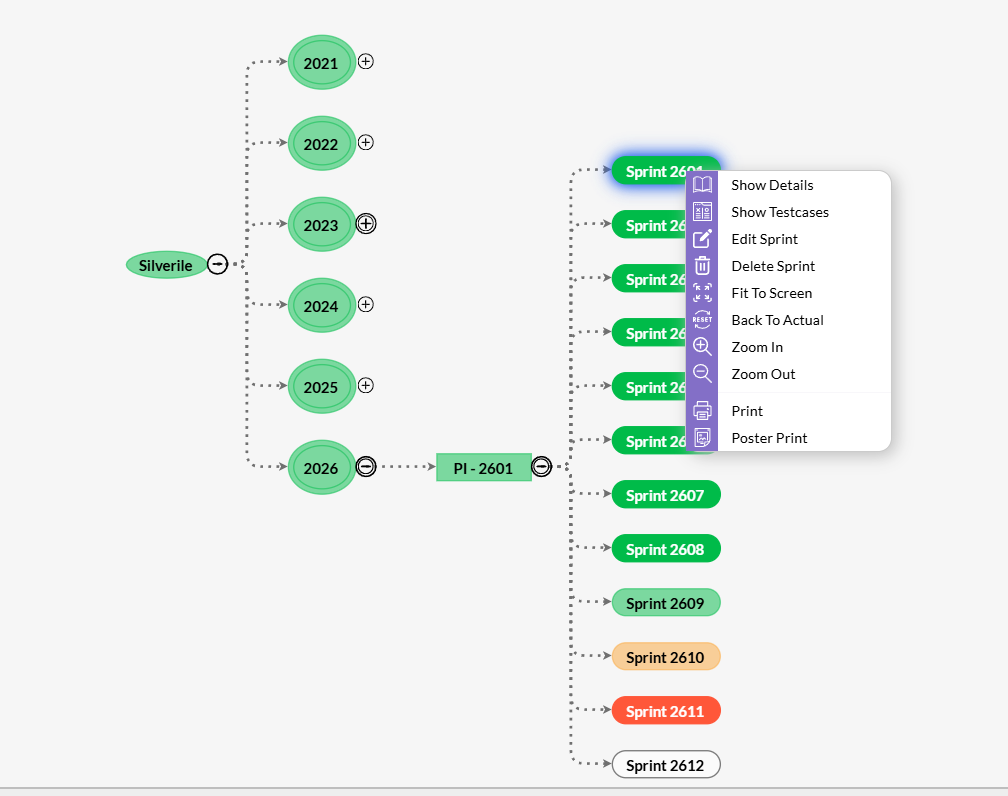
The Scrum View gives you a collapsible tree of your entire project's planning hierarchy — Work Years, Program Increments, Sprints, and Stories — all in one place. It's the go-to view for sprint planning, moving stories between sprints, and getting a structural picture of how work is organised across the year.
Unlike the Board (which shows only the active sprint) or the Backlog (which shows only unscheduled work), the Scrum View shows everything at once — past, present, and future.
Getting there
Tree structure
The tree is organised in four levels. Each level is created automatically — you never need to create Work Years or PIs manually.
| Node | What it represents |
|---|---|
| 📅 Work Year | Top-level container aligned to a calendar or fiscal year. Created automatically when the first sprint of the year is created. |
| 🗓 Program Increment (PI) | A planning interval — typically a quarter. Groups a set of related sprints. |
| ⚡ Sprint | A fixed-length iteration. Shows status (Planned / Active / Closed) and date range. |
| 📄 Story | Individual work items inside a sprint. Colour-coded by status. |
Navigating the tree
Click the chevron (▶ / ▼) next to any node to expand or collapse it. The tree remembers your expanded state while you stay on the page.
- The active sprint is highlighted and expanded by default when you open the view
- Closed sprints are shown in a muted style — expand them to review completed work
- Click any story node to open the full story detail panel on the right
- Click any sprint node to see the sprint summary — dates, story count, and total points
Context menu actions
Right-click any node in the tree to see available actions for that level:
| Node | Available actions |
|---|---|
| PI node | Add Sprint, Edit PI, View PI details |
| Sprint node | Add Story, Start Sprint, Close Sprint, Edit Sprint, Delete Sprint |
| Story node | Open Story, Move to Backlog, Move to Sprint, Edit Story, Delete Story |
Moving stories between sprints
The Scrum View is the fastest way to reassign stories during planning or mid-sprint when priorities change:
Drag and drop
Via context menu
Using Scrum View for sprint planning
During a planning session, open Scrum View alongside the Backlog in a split screen (or use the backlog panel built into the Scrum View sidebar) to:
- See exactly how many points are already in the upcoming sprint before pulling more in
- Drag stories from the backlog section directly into the planned sprint
- Create new stories directly in the sprint using right-click → Add Story on the sprint node
- Quickly move low-priority stories out of the sprint and back to backlog to make room
Troubleshooting
The Scrum View tree is empty
No sprints exist for this project yet. Create a sprint first — the Work Year and PI nodes are generated automatically when the first sprint is created.
I can't see stories inside a sprint node
Click the chevron to expand the sprint node. Stories load on demand when you expand. If still empty after expanding, the sprint has no stories assigned to it yet.
The right-click context menu isn't appearing
Right-click directly on the node label, not on whitespace. If using a trackpad on Mac, ensure two-finger tap is configured as a right-click, or use Ctrl+click.
I dragged a story but it snapped back
Stories can only be moved between sprints within the same project. Dragging to a sprint in a different PI or Work Year works, but dragging outside the tree will cancel the move.
A Work Year or PI is missing
Work Years and PIs are generated from sprint start dates. If a sprint's start date is misconfigured, its parent nodes may appear under an unexpected year or PI. Open the sprint and correct the start date.