Compendium
DocumentationOverview
Compendium is the built-in documentation workspace for your project. It gives every project a structured, version-controlled knowledge base — sections, documents, approval workflows, and rich-text editing all in one place. Documents can be written manually, imported from story content, or generated by AI.
Every document goes through a lifecycle: Draft → In Review → Published → Archived. This makes Compendium suitable for internal wikis, release notes, technical specs, and any documentation that needs a review gate before being shared.
Getting there
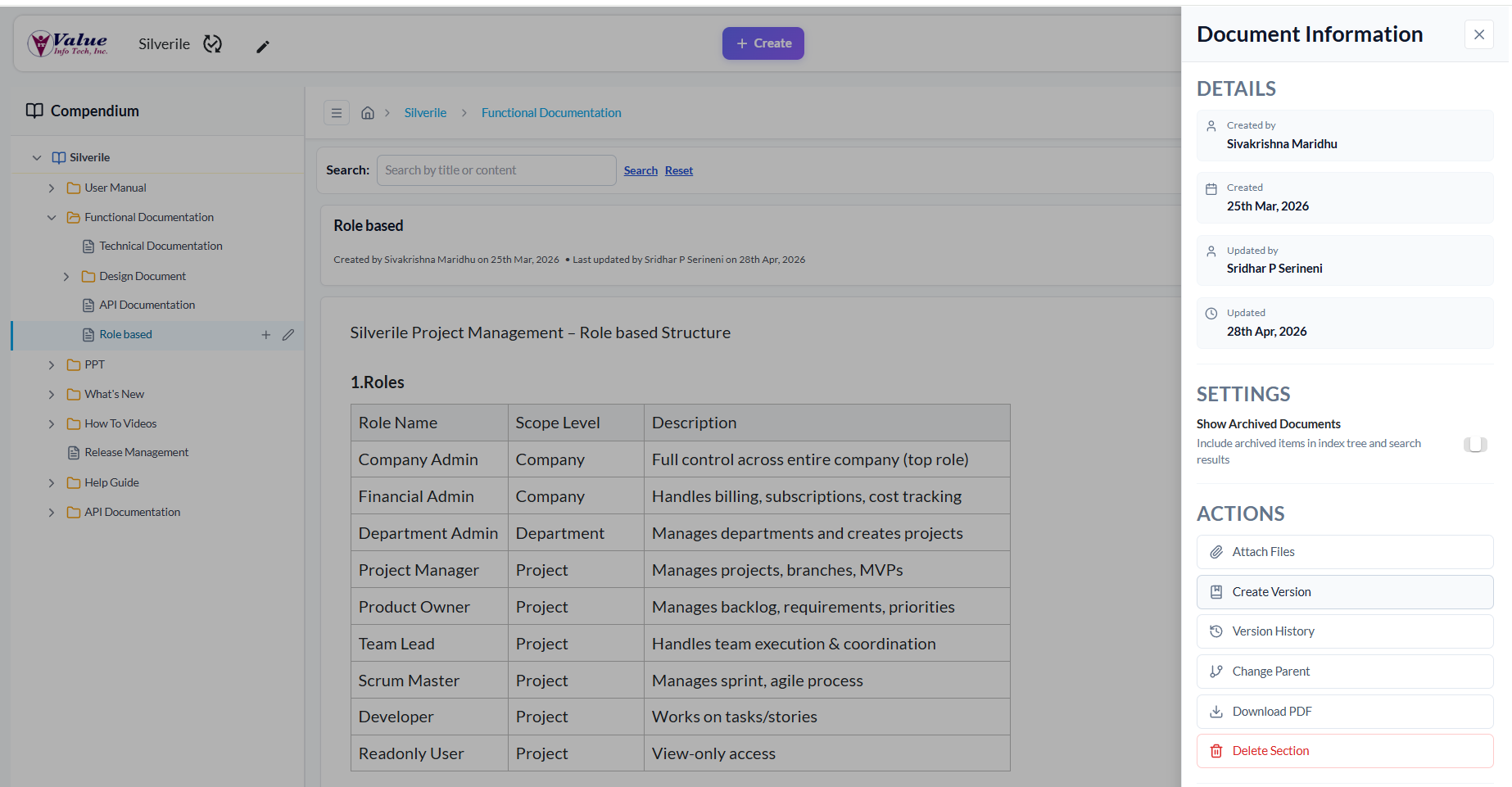
Page layout
| Area | What it does |
|---|---|
| Left Sidebar | Collapsible tree of all sections and documents in the project. Use it to navigate, add, edit, and delete sections. |
| Main Content | Displays the selected document with its title, metadata, content editor, and document toolbar. |
| Search Bar | Full-text and filter search across all documents in the project. Sits above the content area. |
| Breadcrumbs | Shows the hierarchy path of the currently selected section. Click any crumb to jump to that level. |
| Right Info Drawer | Slides open from the right. Shows document details, settings, actions, attachments, and activity log. |
| Approval Queue | Panel toggled from the GitBranch (⎇) icon in the breadcrumb bar. Lists all documents pending review. |
Permissions
Compendium access is tied to your project membership role:
- Read-only users — can view and read all published documents, but cannot create, edit, or transition status
- Project members — can create documents, edit them while in Draft status, and submit them for review
- Product Owners and Project Managers — all of the above, plus can approve (Publish or Reject) documents in the review queue and manage all documents regardless of owner
Feature guides
Each area of Compendium has its own dedicated guide — use the sidebar to navigate:
| Guide | What it covers |
|---|---|
| Sections | How to create, edit, delete, and organise sections in the sidebar tree. |
| Creating Documents | Three ways to create a document: manually, from a Story, or using AI. |
| Editing Documents | Using the rich-text editor, saving changes, and understanding the lock states. |
| Approval Workflow | Status lifecycle (Draft → In Review → Published → Archived) and the approval queue. |
| Document Options | Toolbar actions and the Info Drawer — attachments, version history, share link, PDF export. |
| Search | Searching by title, content, status, classification, and tags. |
Sharing a document
Every document in Compendium has a shareable URL. Click the Share icon (↗) in the document toolbar to copy a link to your clipboard. Recipients who have project access are taken directly to that document when they open the link. Recipients without project access see an "Access Required" message.
Troubleshooting
The Compendium page shows "Access Required"
You do not have a role in this project. Ask the project owner or admin to add you as a project member. Compendium access follows your project membership.
The sidebar tree is empty
The tree loads sections from the selected project. Ensure a project is selected in the top navigation. If the project has no sections yet, create the first one using "Add Section" in the sidebar.
I cannot see the Compendium option
Compendium is available on qualifying subscription plans. If "Compendium" is not in your navigation, check your plan under Billing & Subscription.
Switching projects does not update the content
Use the project switcher at the top of the page. The Compendium reloads automatically when the project changes. If it does not, try a page refresh.