Compendium — Creating Documents
DocumentationOverview
A document in Compendium holds the actual written content — the text, diagrams, and details that make up your project's knowledge base. Documents always live inside a section. There are three ways to create one: write it manually, populate it from an existing story, or generate a first draft with AI.
All new documents start in Draft status. They must be submitted for review and approved before they become Published.
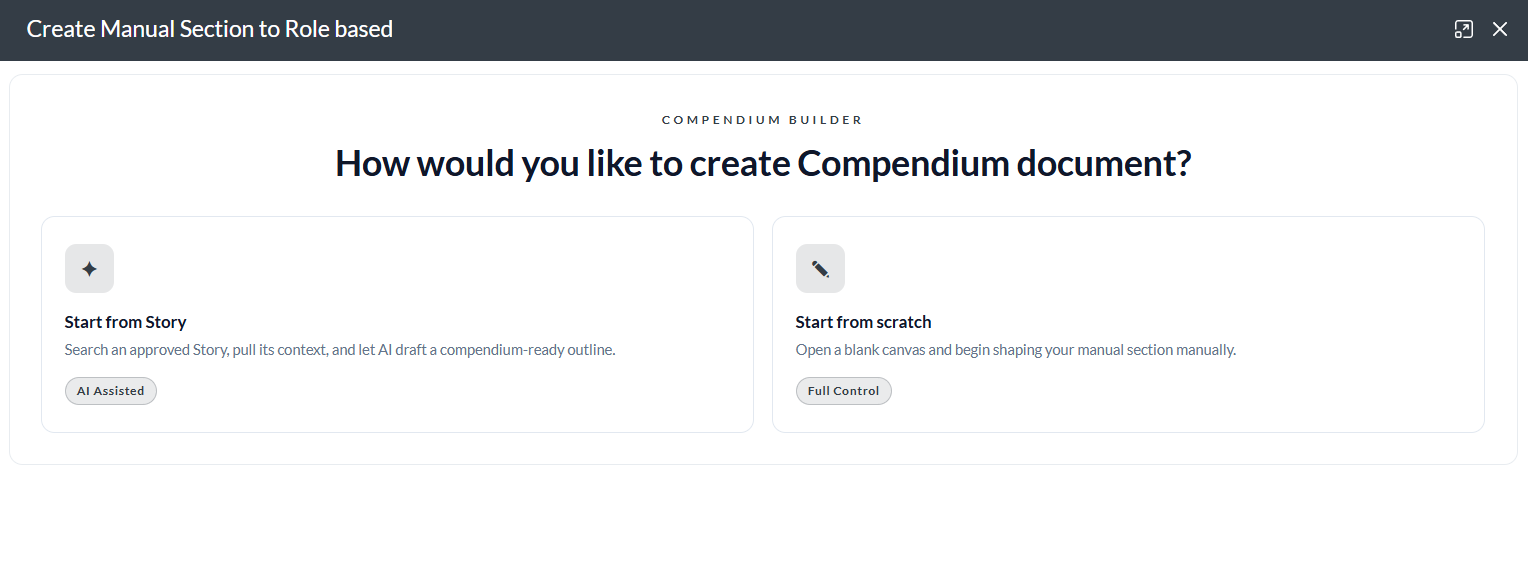
Creation methods
| Method | What it does |
|---|---|
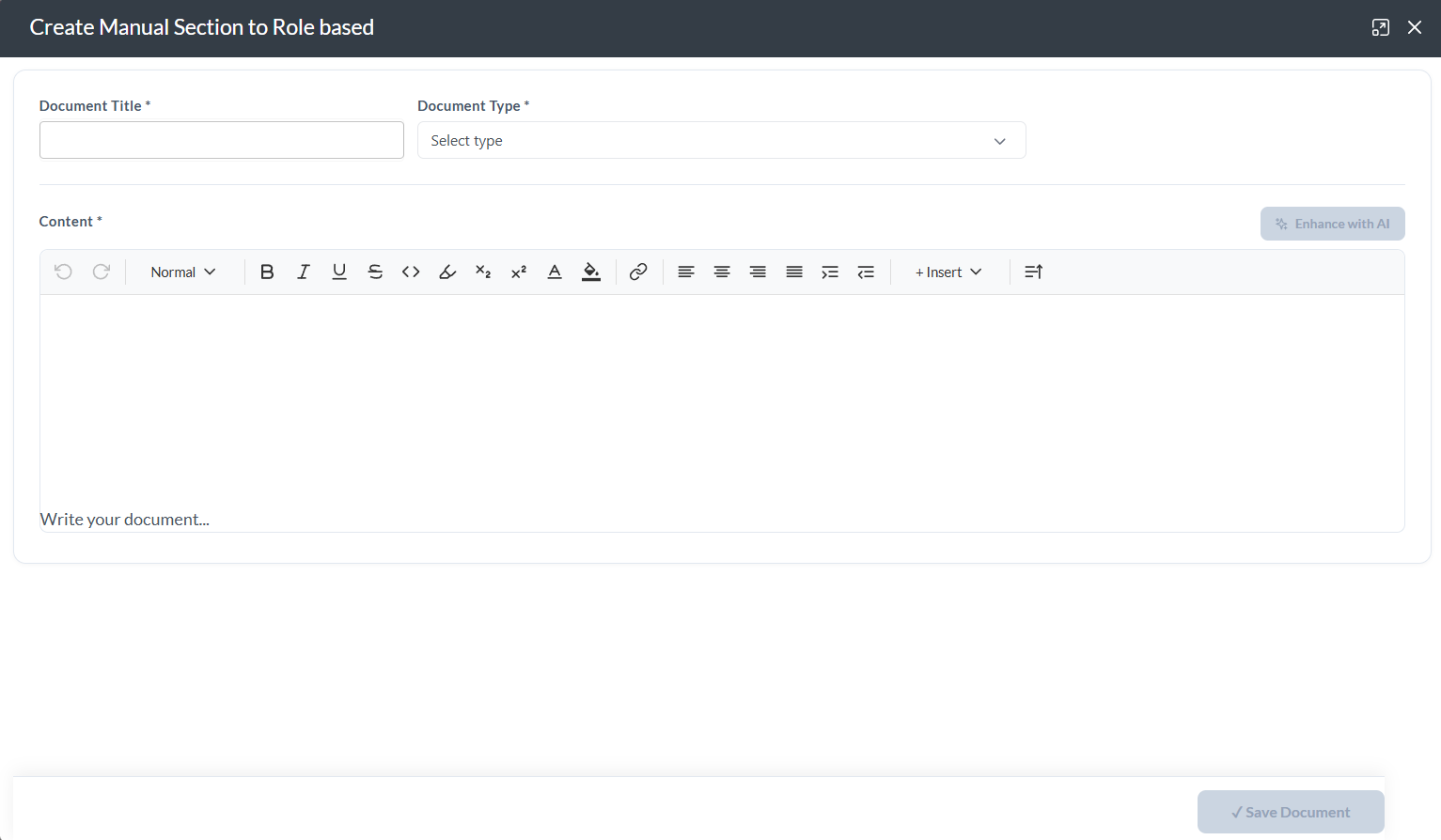
| Manually | Write the document from scratch using the rich-text editor. |
| From a Story | Pull story content (title, description, acceptance criteria) into a new document automatically. |
| Using AI | Generate an initial draft of the document using AI, then refine it in the editor. |
Creating manually
Creating from a Story
Use this method when a story's description and acceptance criteria already contain the information you want to document. The content is pulled in automatically, saving you from copying and pasting.
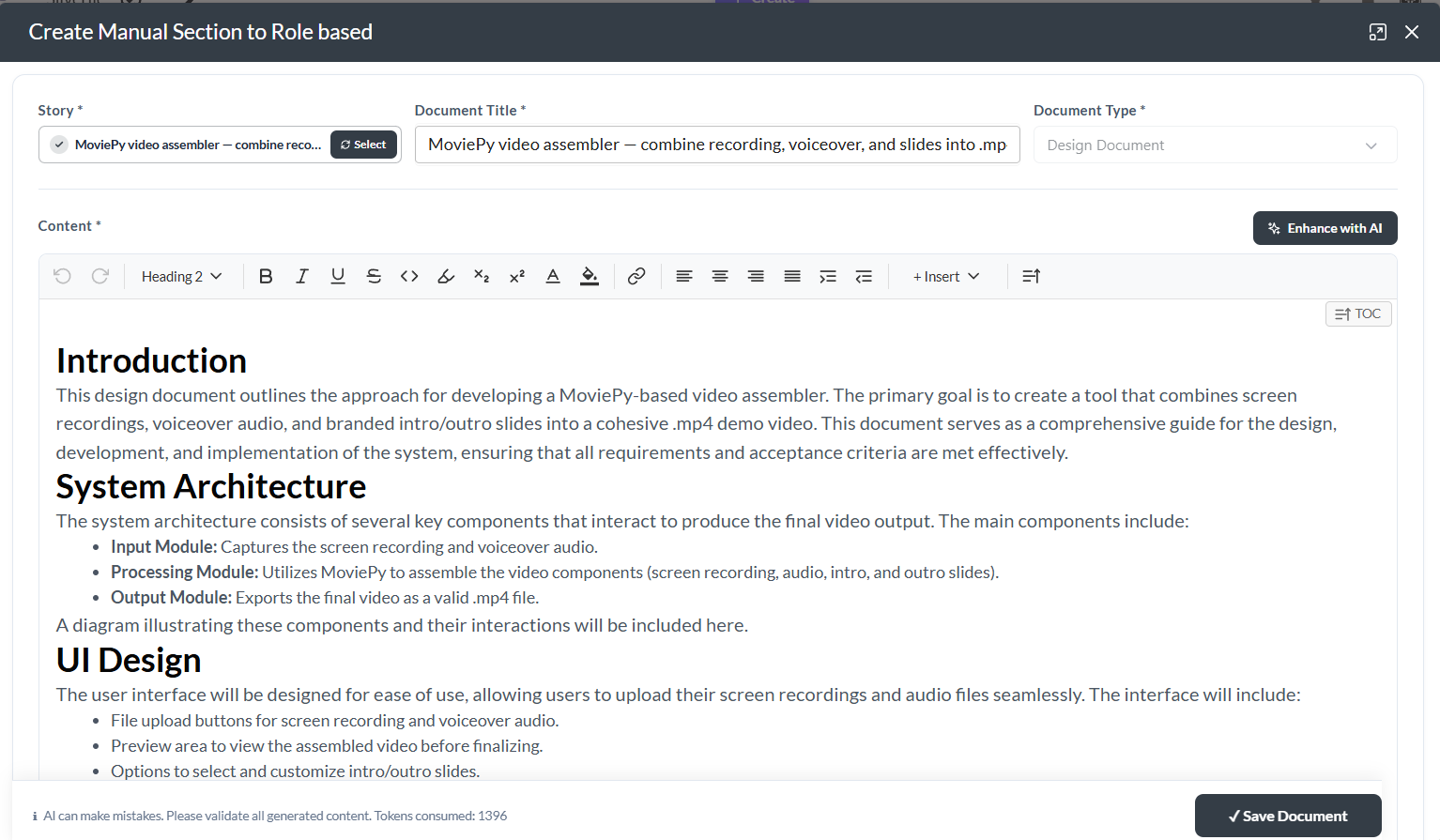
Creating with AI
AI generation writes a first draft for you based on a prompt or topic you provide. It is a starting point — always review and edit AI-generated content before submitting for review.
AI generation uses your plan's AI token balance. Check the AI Token Usage page if generation fails or you receive a token limit error.
Document fields
| Field | Description |
|---|---|
| Title | The name of the document as it appears in the sidebar tree and breadcrumbs. Required. |
| Classification | A category label (e.g. "Architecture", "Runbook", "Policy"). Used for filtering in search. |
| Tags | Comma-separated keywords for discovery. Multiple tags can be added. |
| Content | The document body — written in the rich-text editor. Can be left empty initially and added later. |
After creation
The new document opens immediately in the content area. It is in Draftstatus — only you and project admins can see it until it is published. From here you can:
- Edit the content using the rich-text editor (see the Editing Documents guide)
- Attach files using the paperclip icon in the toolbar
- Submit for review when the content is ready (see the Approval Workflow guide)
Troubleshooting
"Add Document" button is missing
You must be a non-read-only project member to create documents. Read-only users cannot add content. Check your project role with the project admin.
I cannot find the section to add my document to
Sections must exist before documents can be added to them. If no sections are visible, create a section first (see the Sections guide), then add the document.
The Story search returns no results
Story search is limited to stories in the currently selected project. Ensure the correct project is active and that the project has stories in it.
AI-generated content is blank or shows an error
AI generation requires available AI tokens for your plan. Check your AI Token Usage dashboard to confirm you have remaining tokens. If tokens are available and it still fails, try again after a moment.
My document was created but does not appear in the tree
The tree refreshes after creation. If the document is missing, click the Refresh button in the sidebar or reload the page. The new document should appear inside the section you selected.