Virtual Huddle — Huddle Notes
CollaborationOverview
Huddle Notes is a shared, date-scoped collaborative document inside the Virtual Huddle panel. Every member of the project edits the same document for a given date — changes appear live for everyone without refreshing. It is the go-to place to capture stand-up outcomes, decisions, and action items from your daily huddle.
Notes are stored per project, per company, and per calendar date. The date is anchored to the project's configured timezone so all team members see the same "today."
Getting there
Date navigation
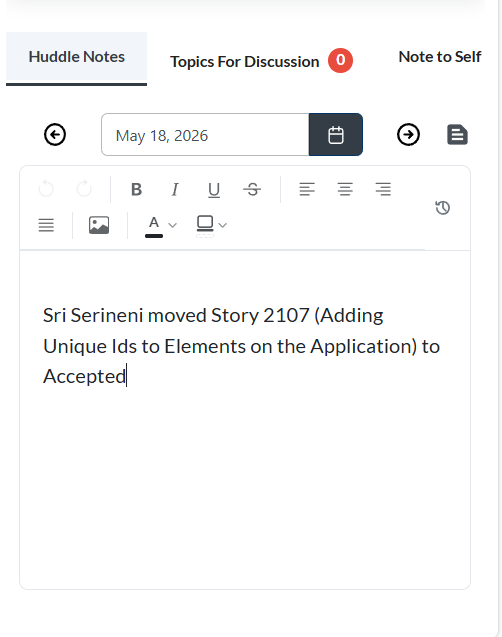
The date bar at the top of the tab lets you browse up to 7 days back from today. You cannot navigate to future dates.
| Control | Behaviour |
|---|---|
| ← Previous | Goes back one calendar day. Disabled at the 7-day lookback limit. |
| → Next | Advances one calendar day. Disabled on today's date. |
| Calendar picker | Jump directly to any date in the last 7 days. Dates outside the window are greyed out. |
| Daily Status icon | Opens the Standup modal for the currently displayed date. |
The collaborative editor
Below the date bar is the shared editor. Multiple team members can type simultaneously and see each other's changes in real time.
- Start typing to begin notes — there is no Save button; content saves automatically on every keystroke
- Use the editor toolbar for formatting: bold, italic, headings, bullet lists, numbered lists
- The document reloads automatically when you navigate to a different date
- Notes from prior dates remain viewable and editable within the 7-day window
- The editor is keyed to a unique identifier of project + company + date, so each day's notes are completely separate
Daily Status (Standup)
The document icon to the right of the date navigation arrows opens the Daily Status modal for the displayed date. Use it to record your individual stand-up entry — what you did yesterday, what you plan today, and any blockers. Entries are tied to the active sprint.
Submitting a standup
Standup fields
| Field | What to enter |
|---|---|
| Standup Date | Pre-filled from the date showing in Huddle Notes. Cannot be changed when editing an existing entry. |
| Yesterday | What you completed in the previous working day. |
| Today | What you plan to work on today. |
| Blockers toggle | Off by default (no blockers). Toggle on to reveal the blockers text area. If you toggle on but leave the text empty, no blockers are saved. |
| Blockers | Only active when the toggle is on. Describe anything that is preventing your progress. Blockers are highlighted for team visibility. |
Editing an existing standup
Open the Daily Status modal for the same date. If an entry already exists for you on that date, the modal switches to edit mode — all fields are pre-filled with your previous answers. Click Update Standup to save changes.
Admins can edit any team member's standup entry via the admin endpoint. Non-admin users can only edit their own entries.
Sprint requirement
The standup modal requires an active sprint for the project. If no sprint is currently running, the Daily Status icon will not open the modal. Start a sprint first (Sprints → Start Sprint).
Troubleshooting
Huddle Notes appear blank for today
Notes are created on first edit. If nobody has typed anything for today yet, the editor will be empty. Start typing and your input is saved automatically.
The ← Previous button is disabled
You have reached the 7-day lookback limit. Notes older than 7 days are not accessible from the date navigation.
The → Next button is disabled
You are already on today's date. Future dates are not available.
Edits I made are not visible to my teammates
Check your internet connection. The collaborative editor syncs in real time over WebSocket. If the connection dropped, refresh the page — the editor will re-sync.
Daily Status icon does nothing when clicked
The Standup modal requires an active sprint for the project. If no sprint is running, start one first (Sprints → Start Sprint). The icon will open the modal once a sprint is active.
I submitted a standup but cannot edit it
If you are the owner of the entry, the modal lets you update it. Admins can edit any team member's entry. If you see an error saying "not authorized," contact your project admin.
The standup shows an error: "Please fill in at least one field"
At least the Yesterday or Today field must contain text before you can save. The blockers field alone is not sufficient.