Virtual Huddle — Calling
CollaborationOverview
The calling feature inside Virtual Huddle gives every project its own persistent video conference room powered by Jitsi. Any team member can join at any time — no scheduling or invite link needed. The room is identified by the company and project, so everyone on the same project automatically lands in the same call.
The call area sits at the top of the Virtual Huddle panel, above the tabs. It stays accessible while you work in Huddle Notes, Discussion, or Note to Self.
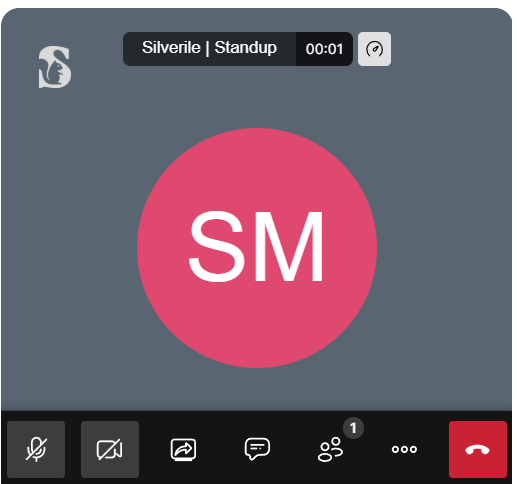
Starting or joining a call
About the room
Each project has exactly one conference room. The room name is derived from your company ID and project ID, so it is unique per project and always the same URL. Your display name inside the call is taken from your profile — first name and last name.
- The room is created on first use — no admin setup required
- There is no participant limit imposed by the platform (subject to your Jitsi server capacity)
- Switching to a different project resets the call state; you must rejoin after switching
- Leaving the call does not end it for others — the room stays open as long as at least one participant remains
Controls reference
| Control | What it does |
|---|---|
| Start / Join Call | Enters the project's conference room. The room is created automatically on first join. |
| End Call (exit) | Leaves the room. Other participants remain in the call. |
| Increase height (▲) | Expands the video area by 200 px each click for a larger view. |
| Decrease height (▼) | Shrinks the video area by 200 px each click (minimum 200 px). |
| Mute / Unmute | Toggles your microphone. Available inside the Jitsi toolbar once in a call. |
| Stop / Start Video | Toggles your camera. Available inside the Jitsi toolbar once in a call. |
Ending the call
Click the End Call button inside the Jitsi panel to leave the room. The video area collapses back to the "Start / Join Call" button. This only removes you — other participants stay connected until they each leave individually.
Troubleshooting
The "Start / Join Call" button does not respond
Your display name and room ID are set from your user profile and the current project. If either is missing (no project selected, or user profile incomplete) the button stays inactive. Select a project and ensure your profile has a first and last name.
No audio or video after joining
The browser must have camera and microphone permissions for this site. Open your browser's site permissions (usually the lock icon in the address bar) and allow both. Reload the page after granting permissions.
I can see the call but other participants cannot hear me
Check that the correct microphone is selected inside the Jitsi audio settings (gear icon in the Jitsi toolbar). Also check that no other application has exclusive control of the microphone.
Switching projects does not end the call
When you switch projects, the call state resets and the button returns to "Start / Join Call". If the Jitsi panel is still visible, click End Call first, then switch projects.
The video area is too small or too large
Use the ▲ Increase and ▼ Decrease buttons on either side of the video panel to resize. Each click adjusts height by 200 px.