Project Settings
ProjectsOverview
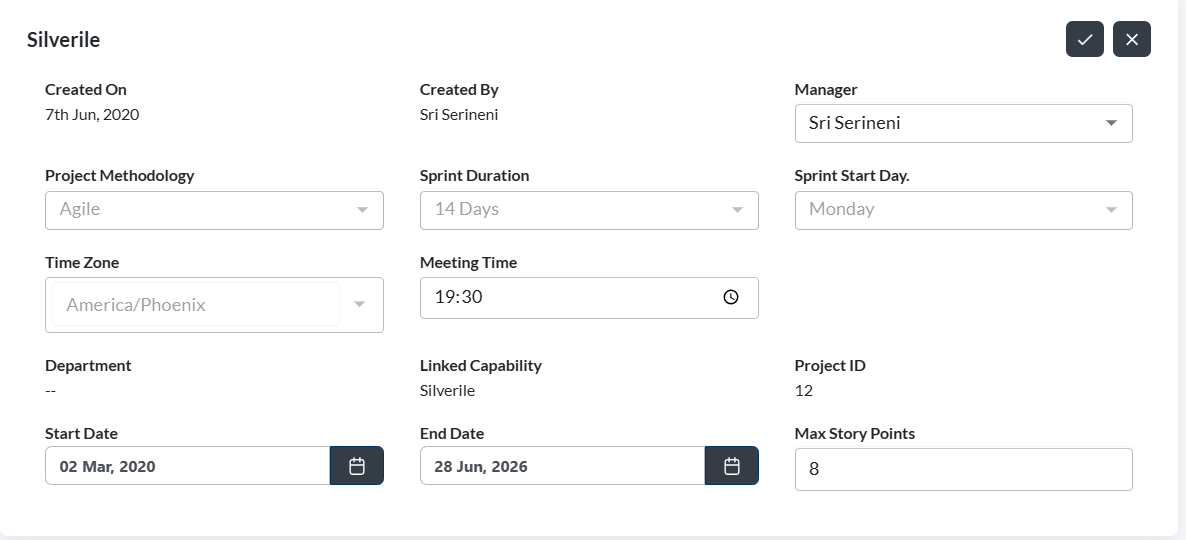
Project Settings control how a project behaves — its methodology, sprint configuration, workflow stages, story types, and more. Most of these are set when the project is created and rarely need to change, but knowing where they are saves time when something needs adjusting.
Only the project manager and Silverile admins can access Project Settings. Other members can view the project but cannot change its configuration.
Getting there

Settings sections
| Section | What you can configure |
|---|---|
| General | Project name, description, methodology (Agile / Waterfall / Kanban), status, and project manager. |
| Sprint Config | Sprint duration, sprint start day of the week, and default sprint naming convention. |
| Story Types | The types of stories available in the project — Feature, Task, Bug, Spike, etc. |
| Story Fields | Which fields are visible and required when creating or editing a story. |
| Board | WIP limits per column, card display options, and default board filters. |
| Teams | Sub-teams within the project. Members can be grouped into teams for filtering and reporting. |
| Estimation | Story point scale (Fibonacci, linear, T-shirt sizes) or time-based estimation. |
| Release Environment | Deployment environments (e.g. Dev, Staging, Production). Add, edit, reorder, or delete environments to define your release pipeline. |
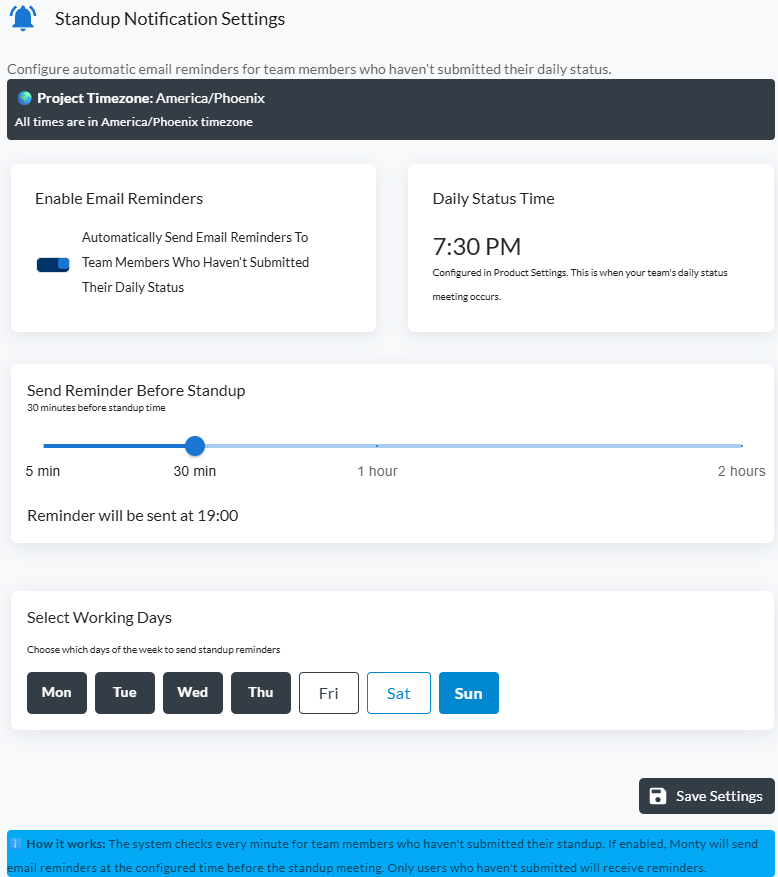
| Notification Updates | Email reminders to prompt team members to update their scrum notes. Enable to send automatic update emails. |
| Integrations | Connect to source control, CI/CD, or third-party tools. |
Choosing a methodology
The methodology determines how work flows through the project. It's set at creation and can be changed later, but changing it affects which features are available:
| Methodology | Best for |
|---|---|
| Agile | Time-boxed sprints with sprint planning, reviews, and retrospectives. Best for iterative delivery. |
| Waterfall | Sequential phases — requirements, design, build, test, deploy. Best for fixed-scope projects. |
| Kanban | Continuous flow without fixed sprints. Stories move through the board as capacity allows. |
Sprint configuration
The Sprint Config tab controls how sprint dates are calculated. These settings feed directly into the Create Sprint form — getting them right once means you almost never need to manually adjust dates.
- Sprint Duration — 1 week, 2 weeks, 4 weeks, Calendar Month, or Semi-monthly. Sets the default end date when creating a sprint.
- Sprint Start Day — the day of the week sprints begin (e.g. Monday). The Create Sprint form will warn you if a chosen start date doesn't fall on this day.
- Sprint Naming — a naming template applied to new sprints automatically. Example: "Sprint {number}" generates Sprint 1, Sprint 2, etc.
Managing story types
Story types let you categorise work — Feature, Task, Bug, Spike, and so on. Each type can have its own colour and icon for quick visual identification on the board.
Release environment
The Release Environment tab lets you define the deployment pipeline for your project — environments like Dev, Staging, and Production that a release moves through before it ships. You can create as many environments as your pipeline requires and control the order they appear.
Adding an environment
Editing and reordering
- Click the edit icon next to an environment to rename it.
- Drag environments up or down to set the pipeline order — releases flow through environments in top-to-bottom sequence.
- Click the delete icon to remove an environment. Environments with active deployments cannot be deleted; complete or reassign those deployments first.
Notification updates
The Notification Updates tab controls automated email reminders that prompt team members to keep their scrum notes up to date. When enabled, users receive an email reminding them to fill in their daily scrum notes.
- Enable / Disable — toggle the setting on or off. When on, emails are sent automatically according to the configured schedule.
- Who receives emails — all active project members. Users can manage their own notification preferences in their personal profile settings.
- What the email contains — a reminder to update scrum notes for the current sprint, with a direct link to the notes page.
Troubleshooting
I don't see a Settings option for the project
Project Settings is only visible to the project manager and Silverile admins. If you need a setting changed, ask your project manager.
I changed the sprint duration but existing sprints didn't update
The sprint duration setting applies to new sprints only. Existing sprint dates are not retroactively adjusted — edit them manually if needed.
I removed a workflow stage but stories still have that status
Removing a stage doesn't change existing stories. Stories with a removed status will remain as-is until manually updated. Remap them before removing the stage if possible.
I can't delete a story type that's in use
Story types that are assigned to existing stories cannot be deleted. Reassign those stories to a different type first, then delete the type.
The WIP limit isn't enforcing — I can still add cards beyond the limit
WIP limits in Silverile are advisory by default — they highlight the column in red but don't block card movement. Hard enforcement can be enabled under Board settings if your project requires it.
I changed the methodology but the board looks the same
Methodology changes affect new features going forward (e.g. sprint creation is hidden for Kanban projects). Existing sprints and board data are preserved.