Company Information
Organisation SettingsOverview
The Company Information tab in Enterprise Settings shows your organisation's profile details — name, contact information, address, branding logos, and the project types that are enabled for your company. Only Admin and Financial Admin users can view this tab.
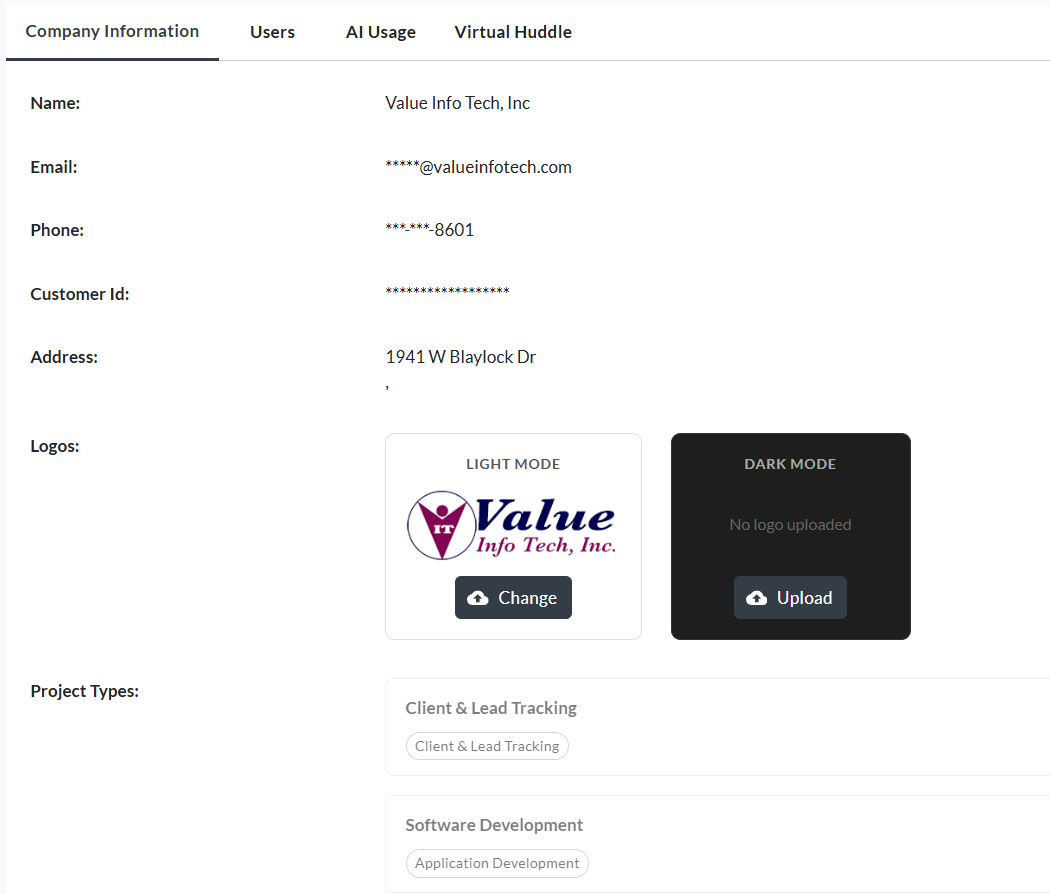
Organisation details
The details panel displays the following read-only fields for your organisation:
| Field | Description |
|---|---|
| Name | The registered name of your organisation. |
| The organisation contact email address. | |
| Phone | The organisation contact phone number. |
| Customer ID | Your Stripe Customer ID, used for billing reference and support queries. |
| Address | The registered address of the organisation — street line 1, line 2 (if set), city, state, postal code, and country. |
To update the organisation name, contact details, or address, contact Silverile support — these fields are managed by the Silverile team.
Organisation logos
The Logos section lets you upload separate logos for light mode and dark mode. These logos appear in the application header and represent your organisation's branding.
| Logo | Background | Description |
|---|---|---|
| Light Mode | White (#ffffff) | Displayed when the application is in light theme. Upload a logo that is visible on a white background. |
| Dark Mode | Dark (#1e1e1e) | Displayed when the application is in dark theme. Upload a logo that is visible on a dark background (e.g., a white or light-coloured version of your logo). |
Uploading or changing a logo
After uploading, the application header will use your organisation logo instead of the default Silverile logo.
Project types
The Project Types section controls which project type categories are available when creating new projects in your organisation. Each project type card shows:
- The project type name
- A toggle switch to enable or disable that type for your organisation
- The story types associated with that project type, shown as read-only chips (e.g., User Story, Bug, Epic)
Enabling or disabling a project type
Important: At least one project type must remain enabled at all times. If you try to disable the last enabled project type, an error message appears: "At least one project type must remain enabled"and the change is not saved.
Disabling a project type removes it from the options when creating new projects. Existing projects of that type are not affected.
Troubleshooting
Company Information tab is not visible
This tab is only accessible to Admin and Financial Admin users. If you do not see it, ask your organisation administrator to grant you the appropriate role.
"At least one project type must remain enabled" error
You cannot disable all project types. Keep at least one enabled. If you need to remove a project type that is the only enabled one, first enable another type, then disable the original.
No project types are listed
Project types are configured at the platform level by Silverile. If none appear, contact Silverile support.
Logo does not appear in the application header after upload
Try refreshing the browser. Logo changes take effect immediately after upload. If the old logo still shows, clear the browser cache.