Sprint Page
SprintsOverview
The Sprint page is the central dashboard for the current sprint. It shows a status-wise point summary, three charts for sprint health, a teams table, a sprint notes section, and the Kanban board — all in one view. Sprint management actions (create, edit, close) are accessible from the ⋮ menu at the top of the page.
Getting there
Page header controls
At the top of the sprint page, alongside the ⋮ actions menu, there are two additional controls:
- Sprint switcher — a dropdown that lets you switch between sprints in the project without leaving the page. Select any sprint from the list to load its data in the same view.
- Generate Sprint Goal — an AI-powered button that analyses the stories assigned to this sprint and generates a concise goal statement. The generated goal can be reviewed and edited before saving to the sprint notes.
Sprint status summary
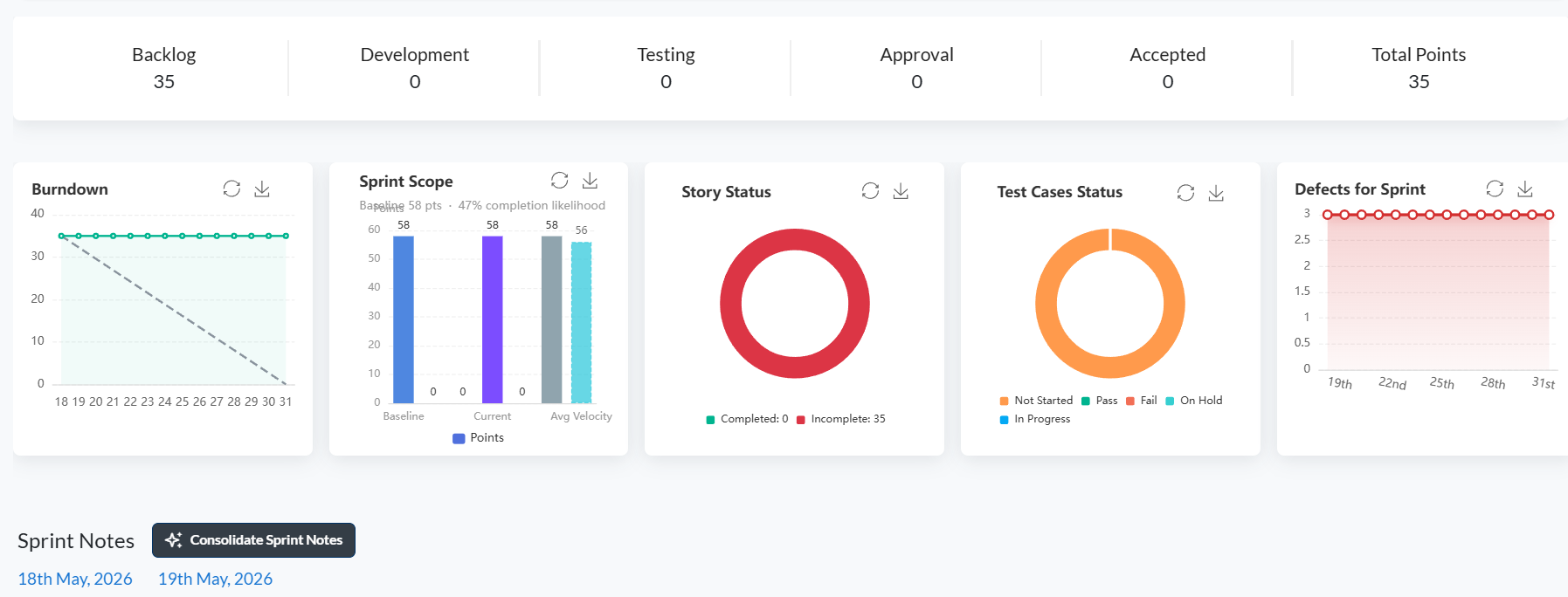
Below the header controls, summary cards show the total story points currently sitting in each key workflow stage for this sprint.
| Card | What it shows |
|---|---|
| Backlog | Story points sitting in the backlog — not yet started. |
| Development | Story points currently in Development. |
| Testing | Story points currently in Testing. |
| Approval | Story points awaiting approval before being accepted. |
| Accepted | Story points that have been accepted and completed. |
| Total Points | Sum of all story points committed to this sprint. |
Charts
Below the summary cards, five charts give a graphical view of sprint health and progress.
| Chart | What it shows |
|---|---|
| Velocity | Story points completed across recent sprints. Compares the current sprint's progress against historical velocity to help with forecasting. |
| Sprint Scope | Tracks how the total story points in the sprint have changed over time — shows scope additions and removals during the sprint. |
| Story Status | Breakdown of all stories in the sprint by their current status. Shows how work is distributed across the workflow at a glance. |
| Defect | Number of defects raised against stories in this sprint over time. Helps the team monitor quality trends. |
| Test Case Status | Breakdown of test cases linked to this sprint's stories by their execution status (Passed, Failed, Blocked, Not Run). |
Teams table
The teams table lists the members working in this sprint — developers and QA — along with the stories and points assigned to each person. Use it to spot workload imbalances and track individual contribution at a glance.
Open defects
Below the teams table, the open defects section lists all defects that are currently open and linked to stories in this sprint. Each row shows the defect title, the story it belongs to, severity, and current status. Click a defect row to open its detail view. Use this section to keep track of quality issues that need resolution before the sprint closes.
Sprint notes
Sprint notes are organised day by day — each day of the sprint has its own note entry. Use the daily note to record what the team worked on, decisions made, blockers raised, or any context relevant to that day. Notes from previous days remain visible as a running log for the full sprint duration.
Kanban board
The Kanban board at the bottom of the page shows all stories assigned to this sprint, organised into columns by status. You can drag stories between columns to update their status, or click a story card to open the full detail view.
Sprint actions
Click the ⋮ button at the top-right of the page to open the sprint actions menu. The options available depend on your role.
| Action | Available to | What it does |
|---|---|---|
| Create Sprint | All contributors | Opens the create sprint form to add a new sprint to the project. |
| Edit Sprint | All contributors | Opens the edit form to update the current sprint's name, dates, or team. |
| Close Sprint | Project Manager only | Opens the close sprint dialog. Unfinished stories can be moved to the backlog or a future sprint before confirming. |
Troubleshooting
The sprint page is empty — no stories or charts
No stories have been assigned to this sprint yet. Go to the Story List or backlog and assign stories to the sprint.
I don't see a "Close Sprint" option in the menu
Close Sprint is only visible to project managers. If you need to close the sprint, ask your project manager to do so.
The Defect chart shows no data
No defects have been linked to stories in this sprint. Defects are raised from the story detail page under the Defects tab.
The Test Case Status chart shows no data
No test cases have been linked to stories in this sprint. Add test cases from the story detail page under the Test Cases tab.
The Velocity chart only shows one bar
Velocity is calculated from closed sprints. If this is the first or second sprint, there is not enough historical data to show a trend yet.
The Teams table is empty
No team members have been assigned to stories in this sprint. Assign a Developer or QA on each story to populate the teams table.
Sprint notes I added are not saving
Sprint notes auto-save as you type. If the note disappears after a page refresh, check your network connection and try again.
The Kanban board at the bottom is not showing all stories
The Kanban board shows stories assigned to the current sprint. Make sure the stories have this sprint set in their Sprint field.