Release Management
ReleasesOverview
Releases group stories and sprints into a deliverable unit — a version, milestone, or deployment. Release management lets you track what's going into a release, monitor progress toward the release date, and record what was delivered.
Releases are visible in the Timeline View, where they appear as milestone markers alongside sprint dates.
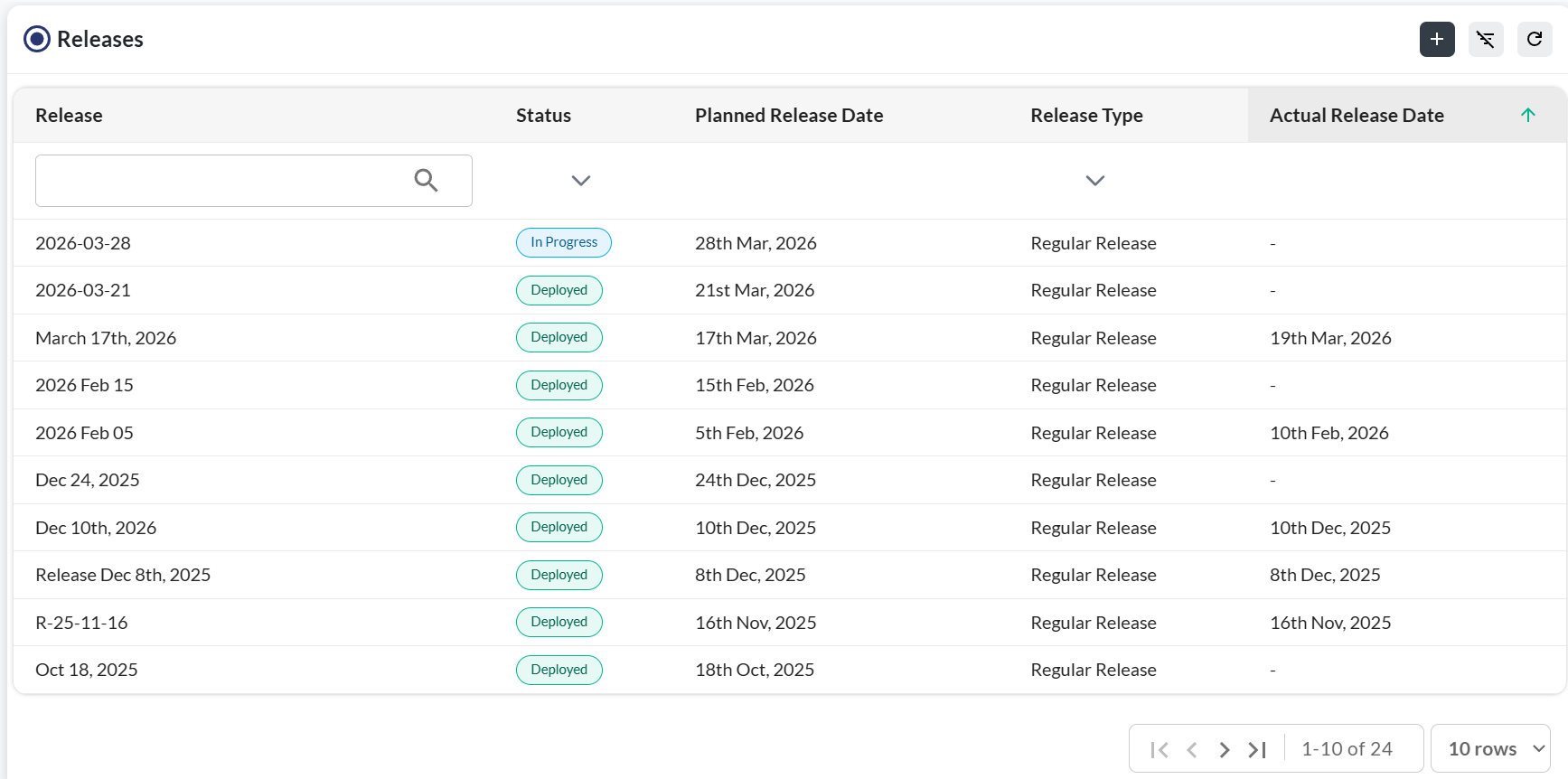
Getting there
Creating a release
| Field | Required | Notes |
|---|---|---|
| Release Name | Yes | A unique name for the release — e.g. "v2.4.0" or "March 2026 Release". |
| Release Date | Yes | Target date for delivery. Used in the Timeline View and release tracking. |
| Description | No | Summary of what this release contains — features, fixes, or scope notes. |
| Status | Yes | Planned, In Progress, or Released. Defaults to Planned. |
Adding stories to a release
Stories can be associated with a release in two ways:
- From the release detail view — open the release, click Add Stories, and search for stories to include
- From a story's detail view — open the story, find the Release field, and select the release from the dropdown
Stories do not need to be in the same sprint to be included in a release — a release can span multiple sprints.
Tracking release progress
Open a release to see its progress dashboard:

- Story count — total stories in the release, with completed vs. remaining
- Story points — total scope in points, with accepted points shown as progress
- Status breakdown — stories grouped by workflow stage
- Days to release — countdown to the target release date
Publishing a release
When work is complete and the release has been delivered, mark it as Released:
Troubleshooting
I don't see a Releases section in the sidebar
Release management may need to be enabled for your project. Ask your project manager to turn it on under Project Settings.
I can't add a story to a release
Stories can be assigned to a release from the story detail view or from the Releases page using the Add Stories button. Make sure the story is in the same project as the release.
A story appears in multiple releases
A story can only be in one release at a time. If a story appears to be linked to multiple releases, it may have been reassigned — check the story's detail view to see its current release assignment.
The release date changed but the Timeline View didn't update
Refresh the Timeline View page after saving the new release date. Timeline data refreshes on page load.
I can't change the status of a Released release
Once a release is marked as Released, it becomes read-only to preserve the historical record. If you need to make a correction, contact a Silverile admin.