Deployment Environments
ReleasesOverview
Deployment environments define the target systems your releases are deployed to — Development, QA, Staging, UAT, Production, and any others your team uses. Setting them up in Silverile lets you record and track what was deployed where, log deployment notes per environment, and build a complete audit trail for each release.
Environments are configured per project under Project Settings and shared across all releases in that project.

Getting there
Common environment setups
Most teams use a pipeline of 3–5 environments. A typical setup:
| Environment | Purpose |
|---|---|
| Development | Active development integration. Updated frequently. Not stable. |
| QA / Testing | Dedicated environment for QA test execution. Should match production configuration. |
| UAT | User Acceptance Testing — used by business stakeholders to sign off before production. |
| Staging | Production mirror. Final validation before go-live. Should have production data snapshot. |
| Production | Live environment. Deployments here require approval and a deployment note. |
Adding an environment
| Field | Required | Notes |
|---|---|---|
| Name | Yes | Unique name for the environment — e.g. Development, QA, Staging, UAT, Production. |
| Description | No | Purpose and any access notes for the environment. |
| URL | No | Base URL for the environment. Shown in deployment notes for quick access. |
| Order | No | Display order in the deployment pipeline. Lower number = earlier in the flow (e.g. Dev=1, Staging=2, Prod=3). |
| Color | No | Visual label colour. Helps distinguish environments at a glance in release and deployment views. |
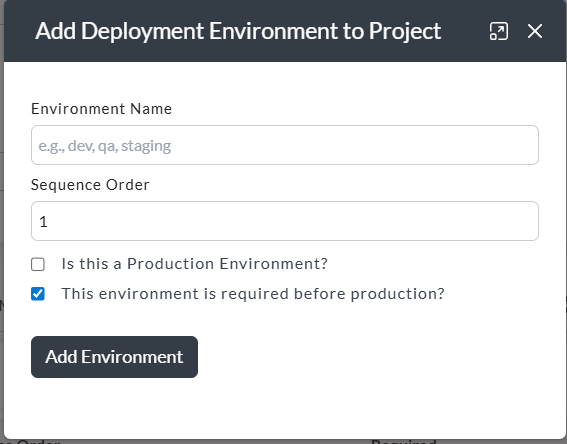
Setting pipeline order
The Order field determines how environments are displayed across Silverile — in the release detail view, deployment note forms, and the deployment history. Set it to reflect the natural flow of your pipeline so the sequence reads left to right: Development → QA → Staging → Production.
You can reorder environments at any time by editing their Order value. Existing deployment notes are not affected.
Archiving environments
If an environment is no longer in use, archive it rather than deleting it. Archived environments are hidden from new deployment note forms but their history is preserved for audit purposes.
To archive: open the environment, toggle Active to off, and save. To restore it, toggle Active back on.
Troubleshooting
I don't see a Deployment Environments section in Project Settings
Deployment Environments are configured under Project Settings → Releases. If the Releases tab is missing, release management may not be enabled for the project — ask your project manager to enable it.
I can't delete an environment
Environments that have deployment notes recorded against them cannot be deleted — the history must be preserved. Archive the environment instead to hide it from active selections while keeping the history.
The environment URL isn't showing in deployment notes
The URL field must be filled in on the environment record. Open Project Settings → Releases → Environments, edit the environment, and add the URL.
I need different environments for different projects
Environments are configured per project. Each project has its own environment list under its own Project Settings.