Defect List
DefectsOverview
The Defect List is the central tracker for all bugs and issues in the project. The top of the page shows KPI summary cards and trend charts so you can assess defect health at a glance, followed by a full table of every defect with filtering and search.
Getting there
KPI summary cards
Six cards at the top of the page give an instant snapshot of the project's defect health.
| Card | What it shows |
|---|---|
| Total Defects | All defects ever raised in this project, across all sprints and statuses. |
| Open Defects | Defects currently in Open status — filed but not yet being worked on. |
| In Progress | Defects actively being investigated or fixed by a developer. |
| Closed | Defects that have been verified and closed. |
| Converted to Story | Defects that were promoted into a user story for planned development work. |
| Rejected | Defects that were reviewed and rejected — not a valid bug or out of scope. |
Charts
Below the KPI cards, three charts show defect trends over time.
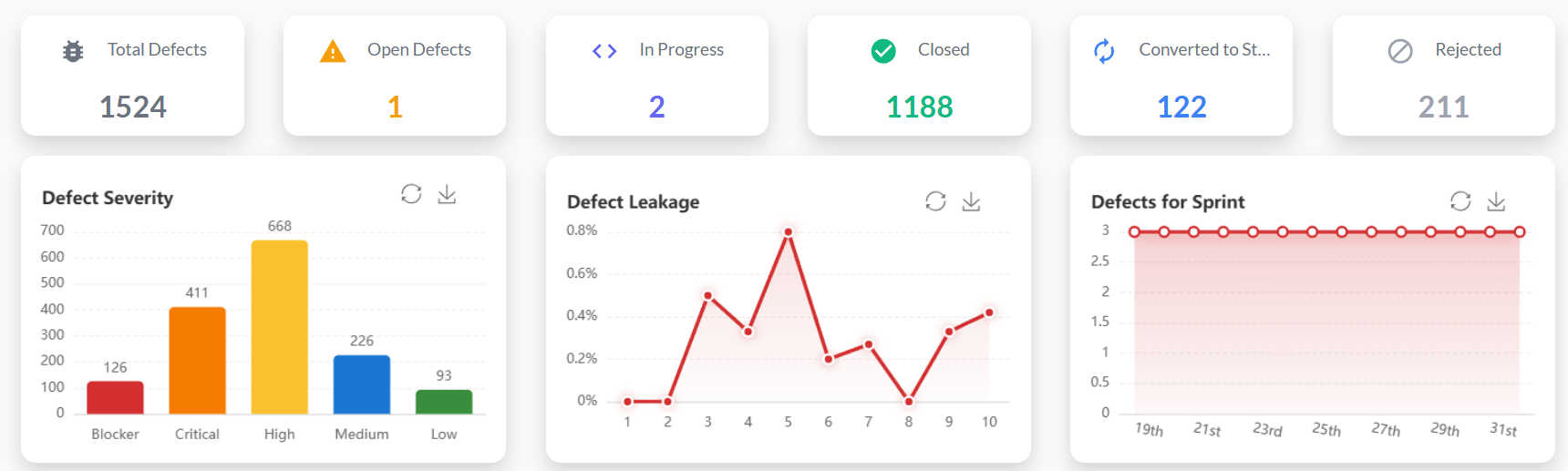
| Chart | What it shows |
|---|---|
| Total Defects | Cumulative count of all defects over time. Shows the overall defect trend for the project. |
| Defects per Sprint | Number of defects raised in each sprint. Helps identify sprints with higher defect density. |
| Defect Leakage | Defects found after a story was marked complete or accepted. Measures quality escaping testing. |
List columns
| Column | What it shows |
|---|---|
| Defect ID | Auto-generated defect identifier. Click to open the defect detail view. |
| Story ID | The story this defect is linked to. Click to open the parent story. |
| Title | Short description of the defect. |
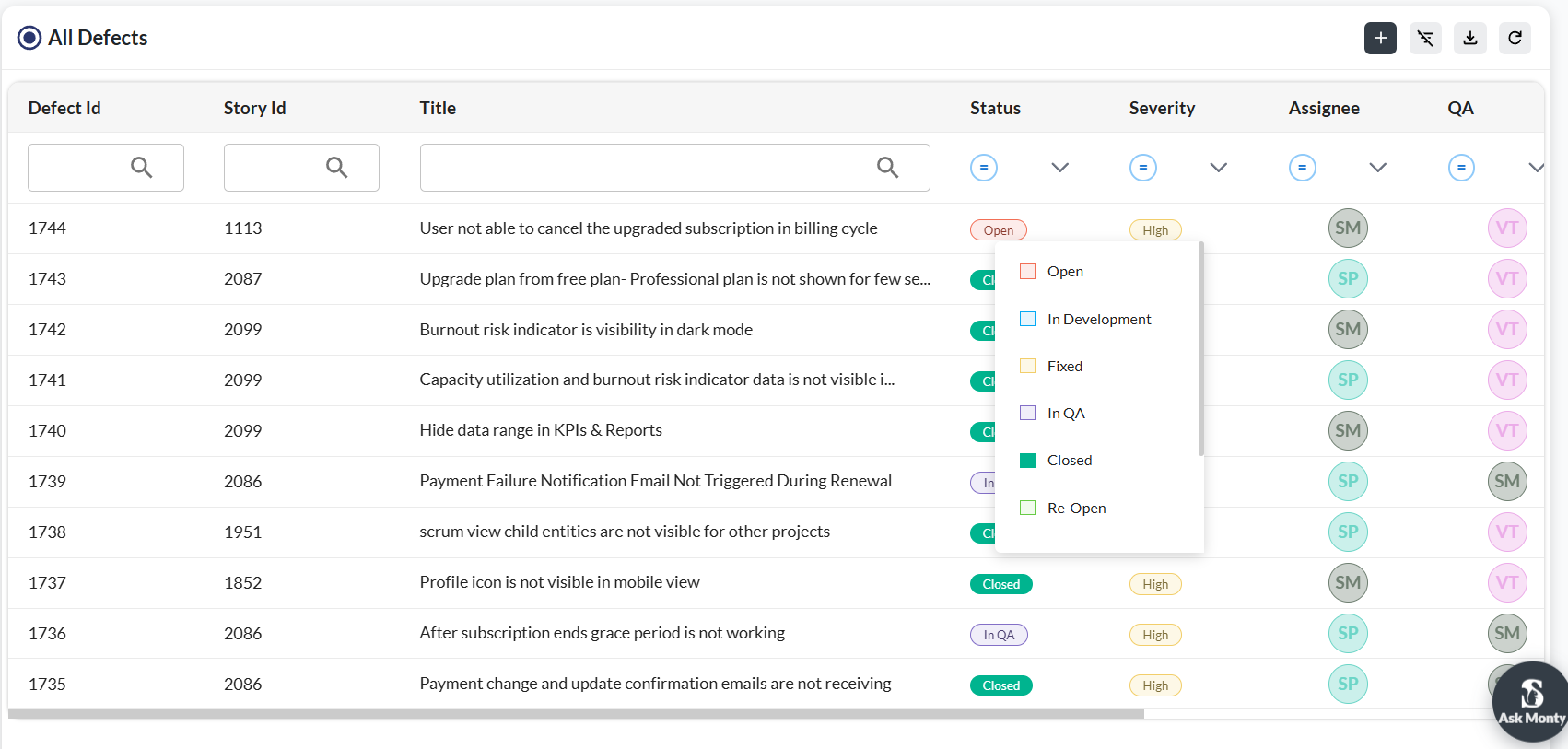
| Status | Current state of the defect: Open, In Progress, Fixed, Verified, Closed, Rejected, or Converted to Story. |
| Severity | Impact level: Critical, High, Medium, or Low. |
| Assign | Developer assigned to investigate and fix the defect. |
| QA | QA member responsible for verifying the fix. |
| Updated | Date and time the defect was last modified. |
| Created | Date the defect was filed. |
Filtering and searching
Filter by Status, Severity, Sprint, or Assign using the filter bar above the table. Use the search box to find defects by title or ID. Filters stack — combine Severity and Status to quickly find all open Critical defects, for example.
Defect workflow
Defects move through a lifecycle. Update the status on the defect detail page as work progresses.
| Current status | Next status | When to move |
|---|---|---|
| Open | In Progress | Assigned developer begins investigating. |
| In Progress | Fixed | Developer marks it fixed after deploying the fix. |
| Fixed | Verified | QA confirms the fix works in the target environment. |
| Verified | Closed | Fix is accepted and the defect is closed. |
| Any | Reopened | If the fix did not resolve the issue, the defect is reopened with notes. |
| Any | Rejected | Defect is reviewed and determined to be invalid or out of scope. |
| Any | Converted to Story | Defect is promoted into a user story for planned development. |
Troubleshooting
I can't find a defect I know exists
Check for active status or severity filters that might be hiding it. Use the search box to find by defect ID or title keyword.
A defect I fixed is still showing as Open
Status changes are not automatic. Open the defect and move it to Fixed, or ask the developer to update it.
The Story ID column is blank for some defects
Defects can be created without linking to a story. Open the defect and add the story link in the detail view.
The Defect Leakage chart shows no data
Defect leakage is calculated from defects raised after their linked story was accepted. If no stories have been accepted yet, the chart will be empty.
The Defects per Sprint chart is missing some sprints
Only sprints with at least one defect appear in the chart. Sprints with no defects are not plotted.
I want to see only defects assigned to me
Use the Assign filter and select your name. This scopes the list to defects where you are the assigned developer.