User Settings
User ManagementOverview
User Settings is a personal configuration page available to every logged-in user. It has two tabs: Profile — for personal preferences — and Projects — for viewing assigned projects, departments, and managed entities.
Getting there
Profile tab
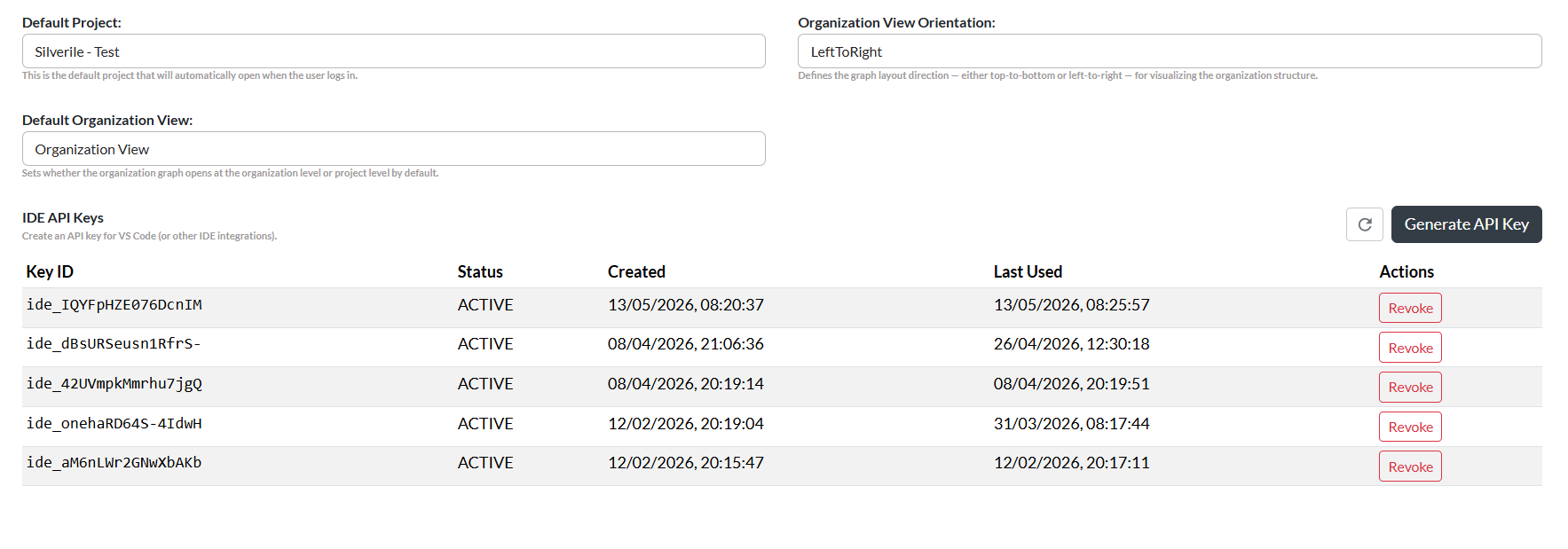
The Profile tab contains your user profile information and personal application preferences. The top section shows your User Profile (name, email, and other account details). Below that are four preference settings:
| Setting | Description | Options |
|---|---|---|
| Default Project | The project that automatically opens when you log in. | Dropdown list of all projects you are assigned to |
| Organization View Orientation | Sets the graph layout direction for the Organisation View. | Top To Bottom, Left To Right |
| Default Organization View | Controls whether the Organisation graph opens at the organisation level or the project level when you navigate to it. | Default Project, Organization View |
Each preference is saved automatically as soon as you change the dropdown selection — there is no separate Save button.
Updating your password
The Profile tab shows your account details — User ID, Name, Email, Manager, and Department — and includes an Update Password link at the bottom of that section.
Both fields are required and must match. If the passwords do not match, the error "New password and confirm password do not match." is shown and the change is not saved.
Projects tab
The Projects tab shows read-only information about your assignments in the organisation. It has three expandable accordion sections:
| Section | Description |
|---|---|
| Assigned Projects | All projects you are assigned to. Click any project name to open the Project Details dialog for that project. |
| Assigned Departments | All departments you are a member of. Click any department name to open its details. |
| Manager To | Entities (Company, Business Entity, or Project) for which you have a manager role. Click any entry to open its details. |
Click the + / − button on any section header to expand or collapse it. These sections are read-only — project and department assignments are managed by your organisation administrator.
Troubleshooting
The User Settings page is not loading
User Settings requires an active session. If you see a loading spinner, wait a moment. If it shows the landing page, your session has expired — log in again.
"New password and confirm password do not match" error
Both the New Password and Confirm Password fields must contain exactly the same value. Re-enter both fields carefully and try again.
Update Password failed with an error message
The error message from the server describes the reason (e.g., password policy violation). Read the message, correct the password, and try again. If the problem persists, contact Silverile support.
My Default Project setting was not saved
Settings are saved immediately on dropdown change. If the page shows an error message, try again. If the problem persists, refresh the browser.